

OshonSoft AI Language Model Lab
Guided Examples and Screenshots
PRODUCT HOMEPAGE - USER MANUAL - DOWNLOAD
See how the Lab takes you from text and tokens to model predictions, gradients and learning. These application views cover the guided English, bit and arithmetic examples, the main working pages and the MLP and Transformer Live View lessons.
The examples use trained checkpoints and working copies for inspection. The Transformer Live View screens also show a fresh guide model. Read the model and update labels when comparing values between screens.
Click any screenshot to open the original image at full size. The descriptions explain what to look for; the guides inside the application perform the lessons step by step.
On this page:
1. Start a guided example
2. Prepare a model and its text
3. Follow one MLP prediction and update
4. Save, generate and compare
5. Plan a saved training run
6. Explore the Decoder Transformer
7. Watch MLP learning and retain one SGD step
8. Watch attention and its Timeline
9. Learn operations on sixteen bits
10. Learn arithmetic and counting
1. Start a guided example
Click Guided Getting Started in the Lab, choose a lesson and read the current step. Use Execute step to work at your own pace, or Run automatically to follow the lesson. Save your current model first: a lesson can load or prepare another project.
Choose a lesson
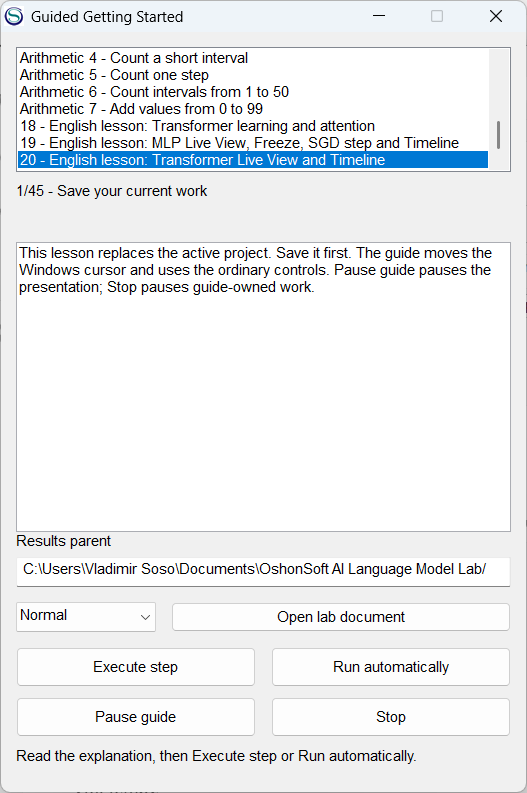
Choose a lesson and read the next step. Execute one step at a time or run the complete presentation automatically.
Finish the guided presentation
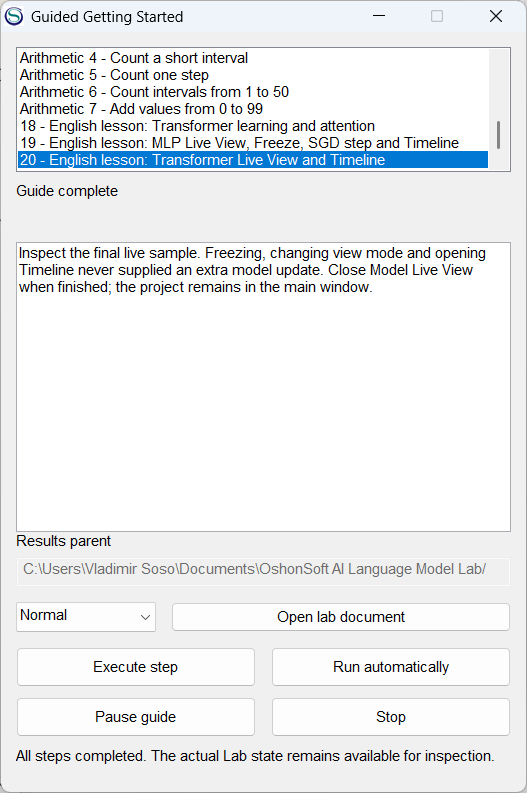
The Transformer Live View presentation has completed all its steps. Read the final explanation, then explore the resulting model in the Lab.
2. Prepare a model and its text
Choose dimensions, prepare the text and inspect the tokens before learning. The English example combines a narrative with USER/MODEL exercises. A preset fills the dimension fields; Apply dimensions applies the configuration.
Choose the MLP layout
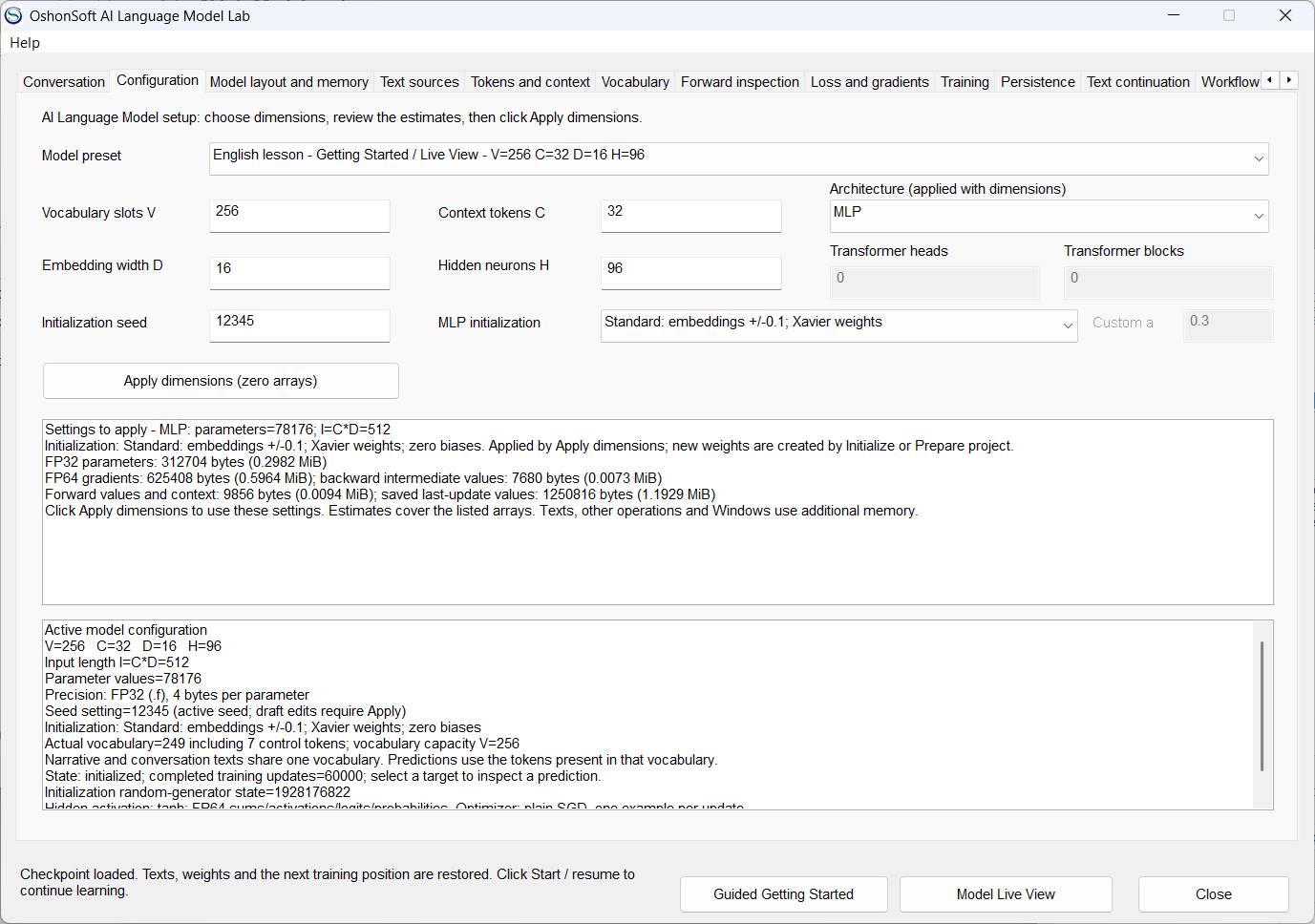
The English lesson uses V256, C32, D16 and H96. Configuration also shows the initialization choice and draft memory estimates.
Read the parameter layout
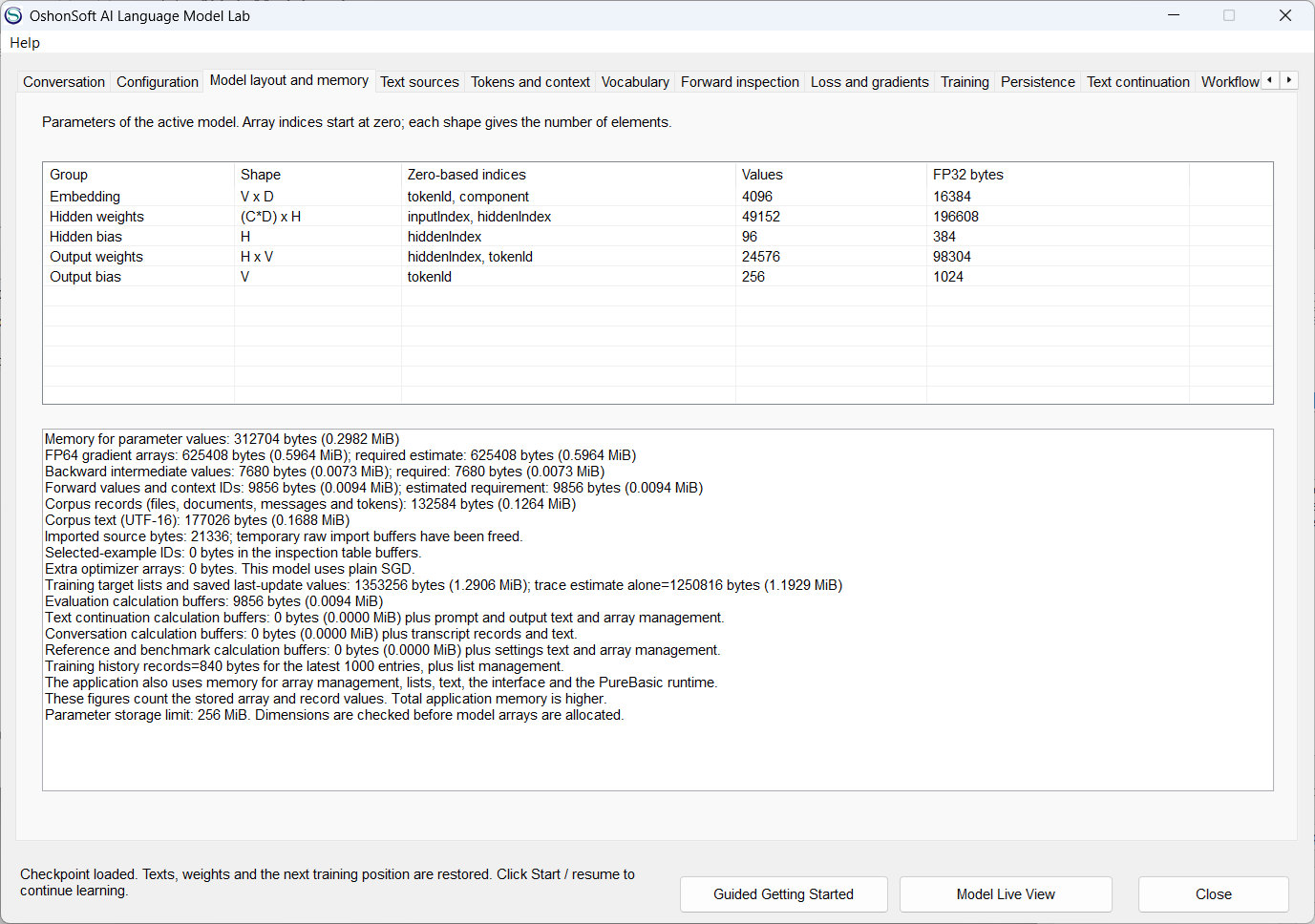
Model layout and memory lists the MLP arrays, their shapes and value counts. Separate figures distinguish parameter storage, gradients and work arrays.
Review the text sources
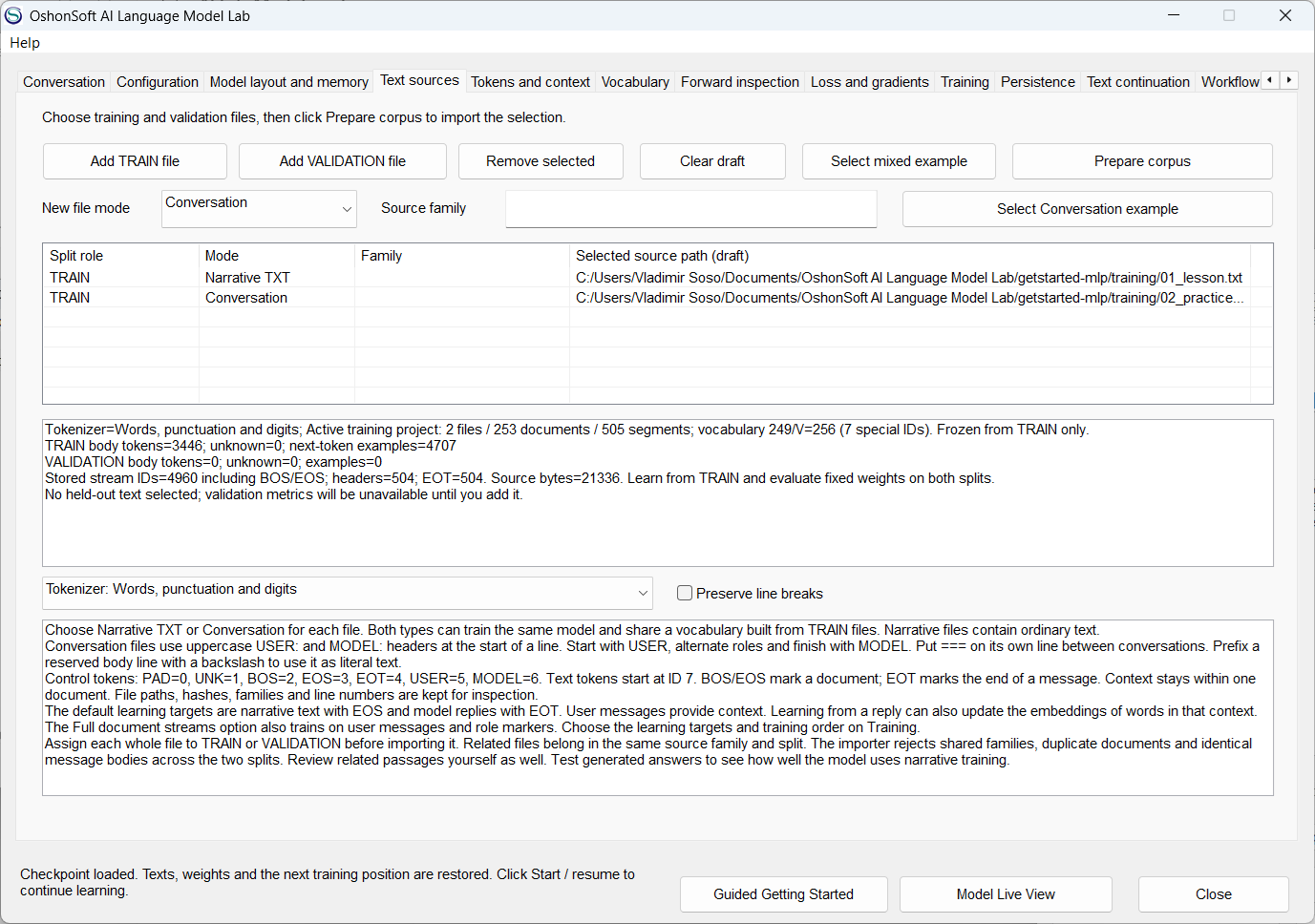
The loaded project contains a 694-word narrative and 252 TRAIN conversations. The vocabulary is built from TRAIN, using separate digits and join markers.
Select a target and inspect its context
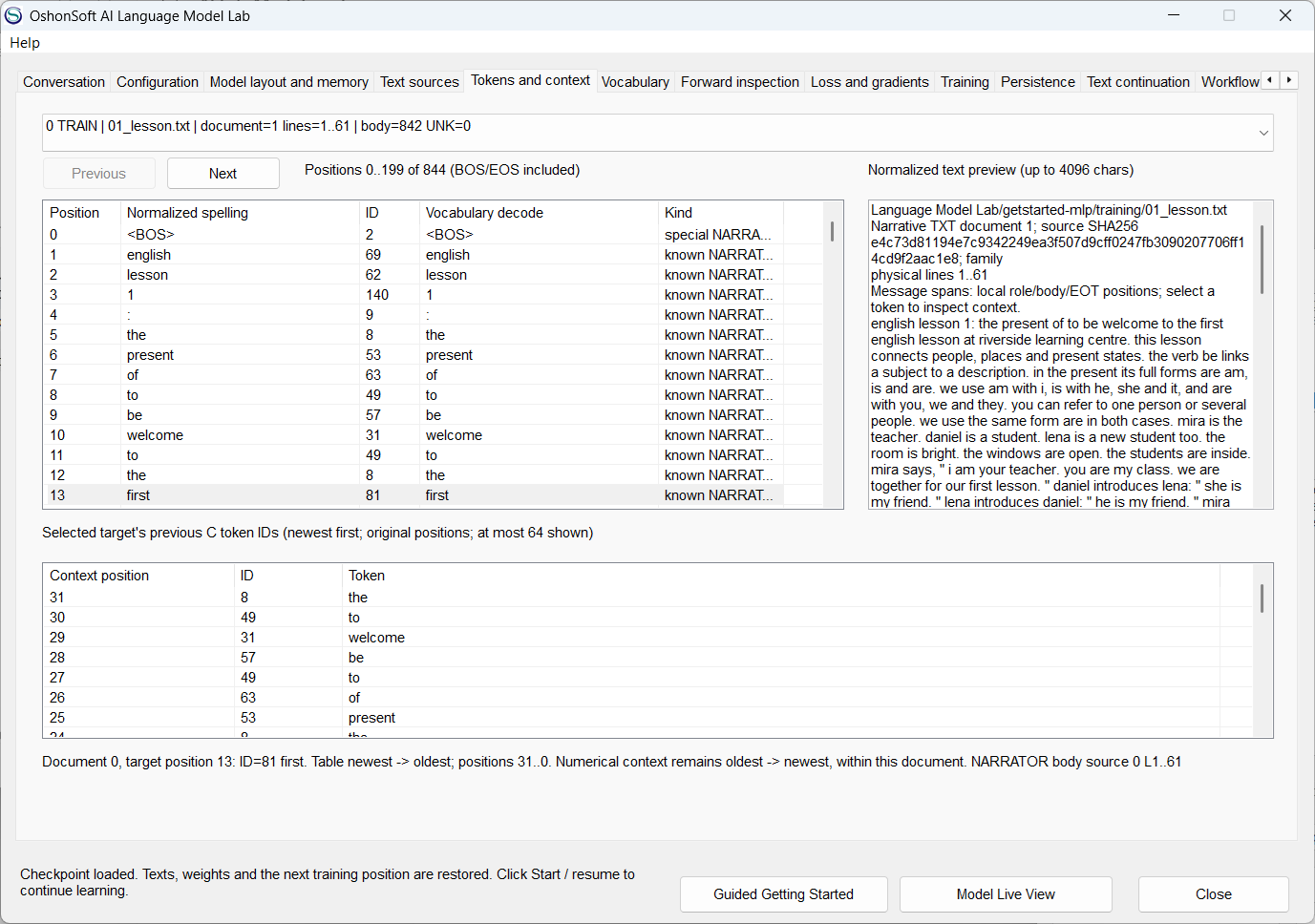
Select a token to inspect its preceding context. The context appears newest first, while the original context-position labels are retained.
Read the frozen vocabulary
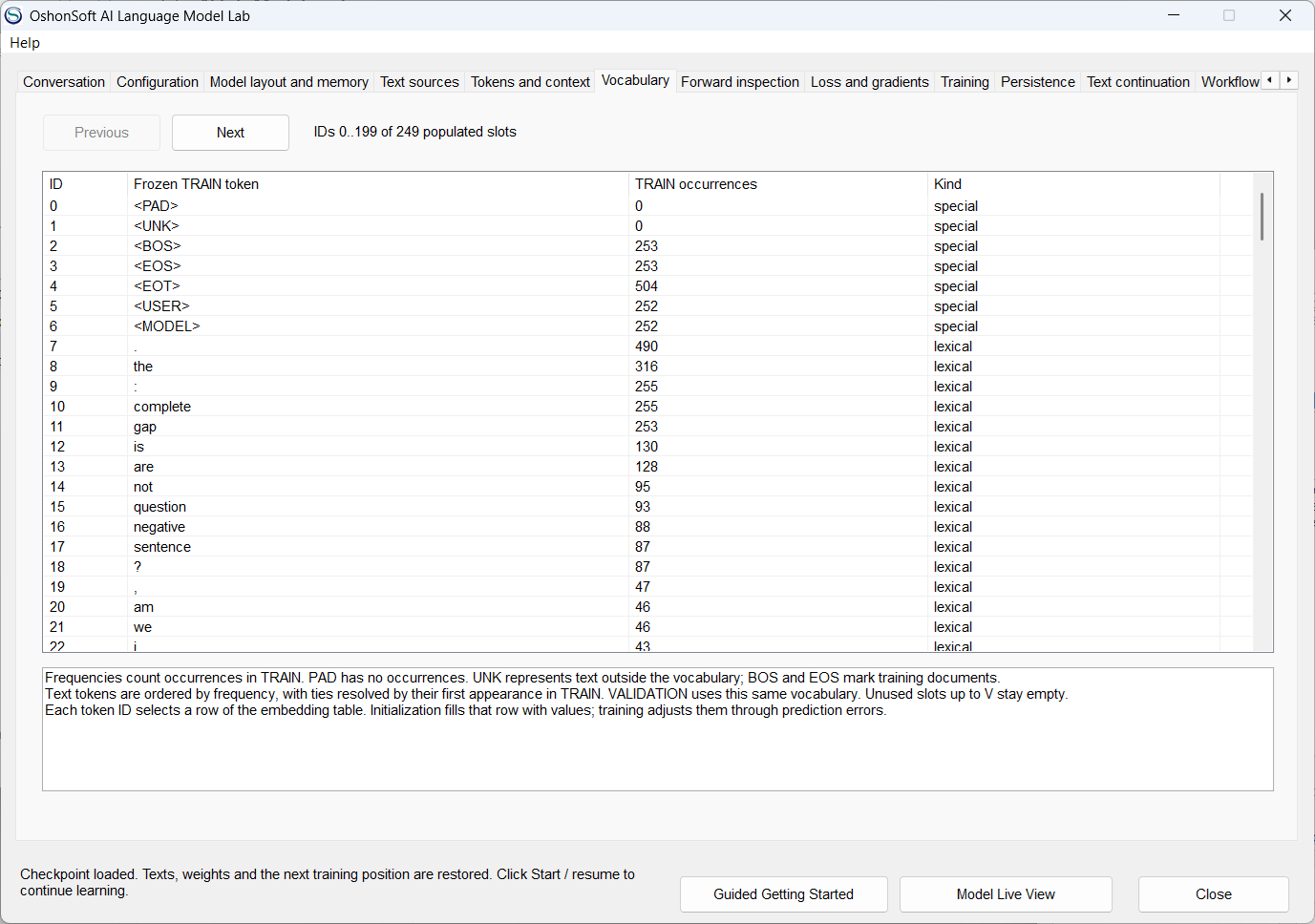
The loaded model has 249 vocabulary entries, including seven control tokens. Each row shows its token ID and TRAIN occurrence count.
3. Follow one MLP prediction and update
Load the trained MLP example, select a target on Tokens and context and use Predict selected context. Compute backward to inspect derivatives, then use One TRAIN update when you want to change the weights.
Inspect the forward calculation
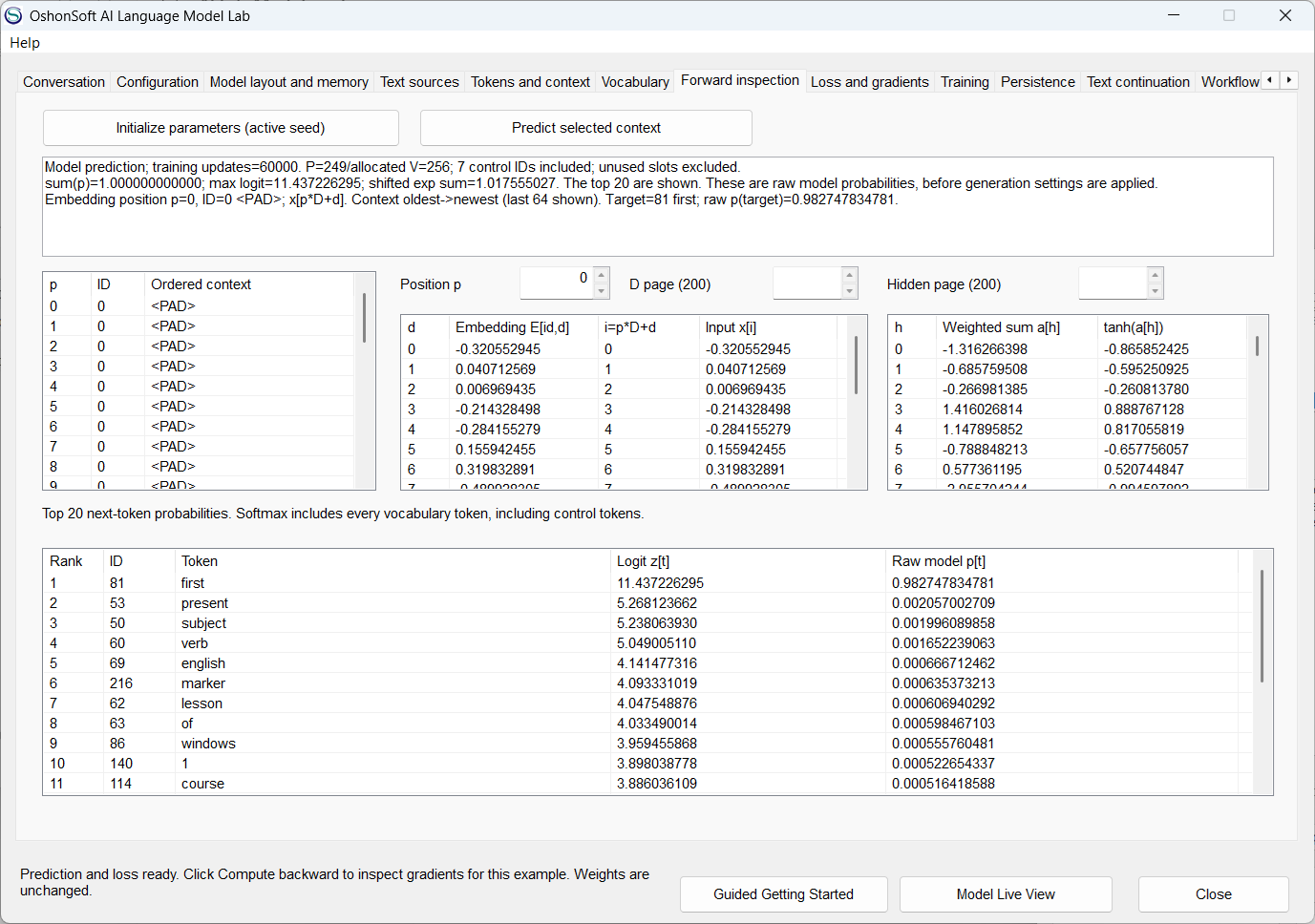
Follow context IDs into embeddings and hidden tanh values, then read the logits and raw next-token probabilities. This prediction leaves the weights unchanged.
Inspect the gradients
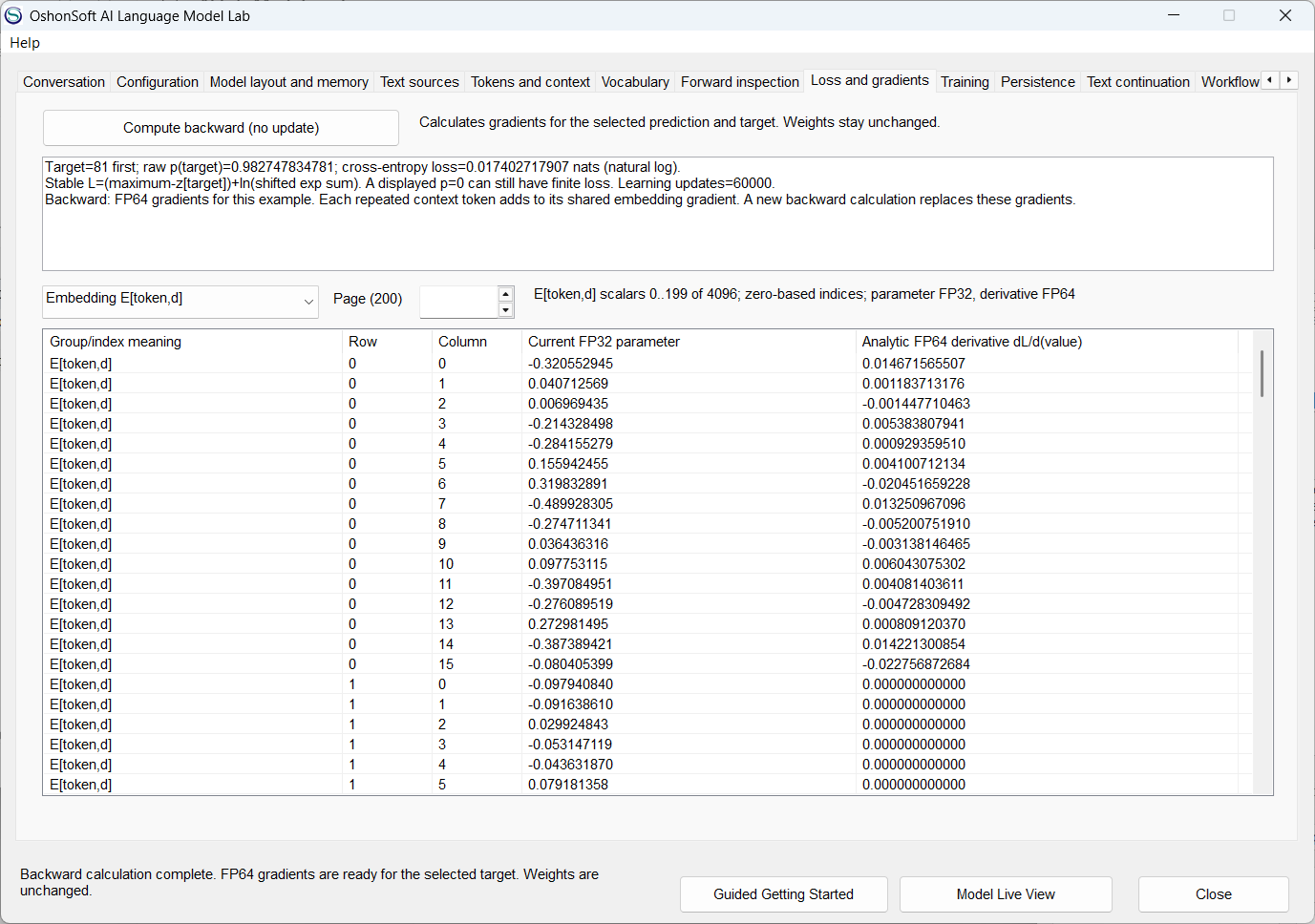
Loss and gradients shows the actual FP64 derivatives for the selected target. Compute backward (no update) calculates derivatives without applying SGD.
Make one learning update
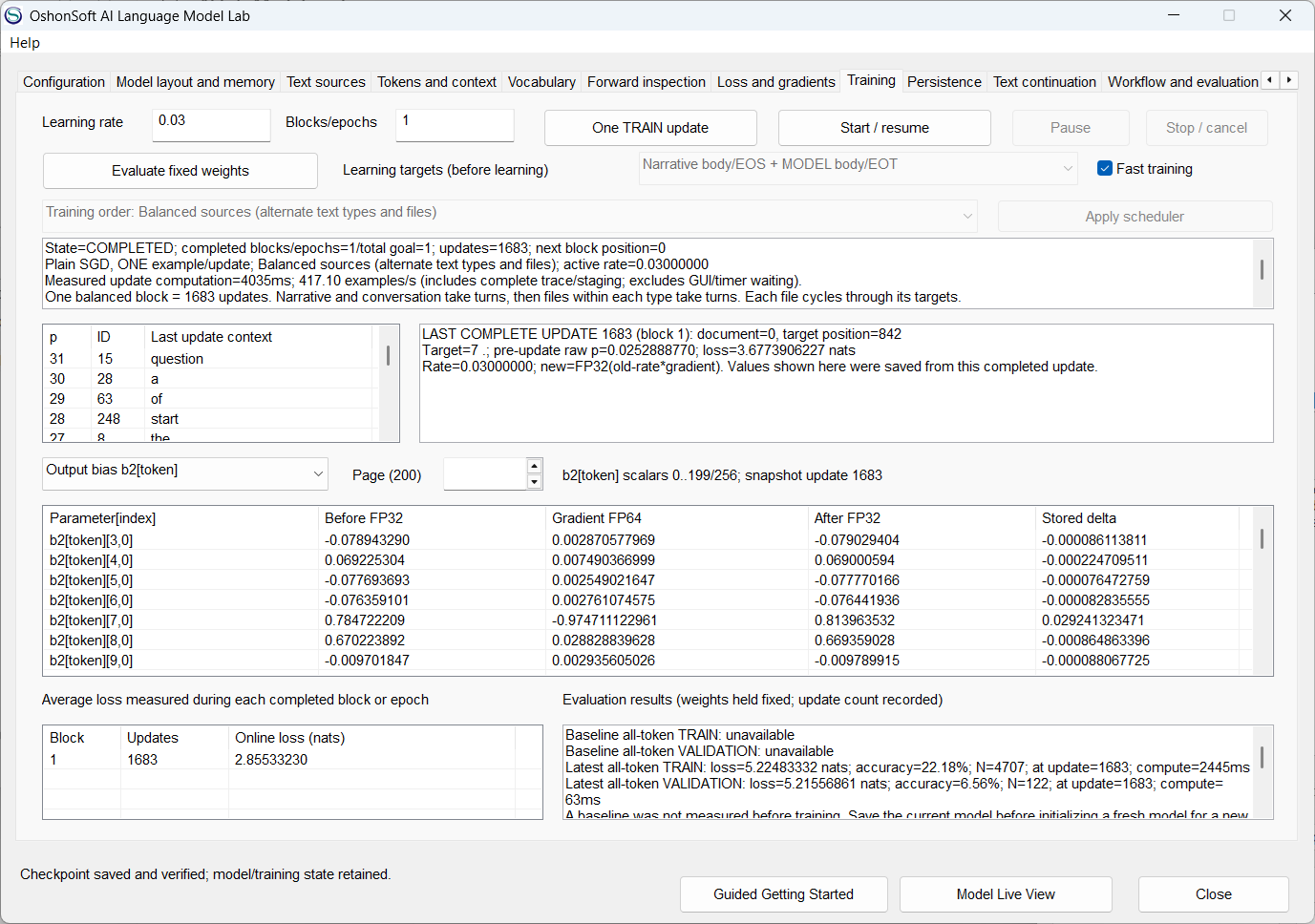
One TRAIN update changes the working model. The table shows FP32 values before and after SGD, the FP64 gradients and the stored changes.
4. Save, generate and compare
Use a saved checkpoint to return to a known model. Try a complete reply, continue a passage and compare fixed-weight predictions. The screens below use the selected MLP checkpoint at update 60000.
Load a saved checkpoint
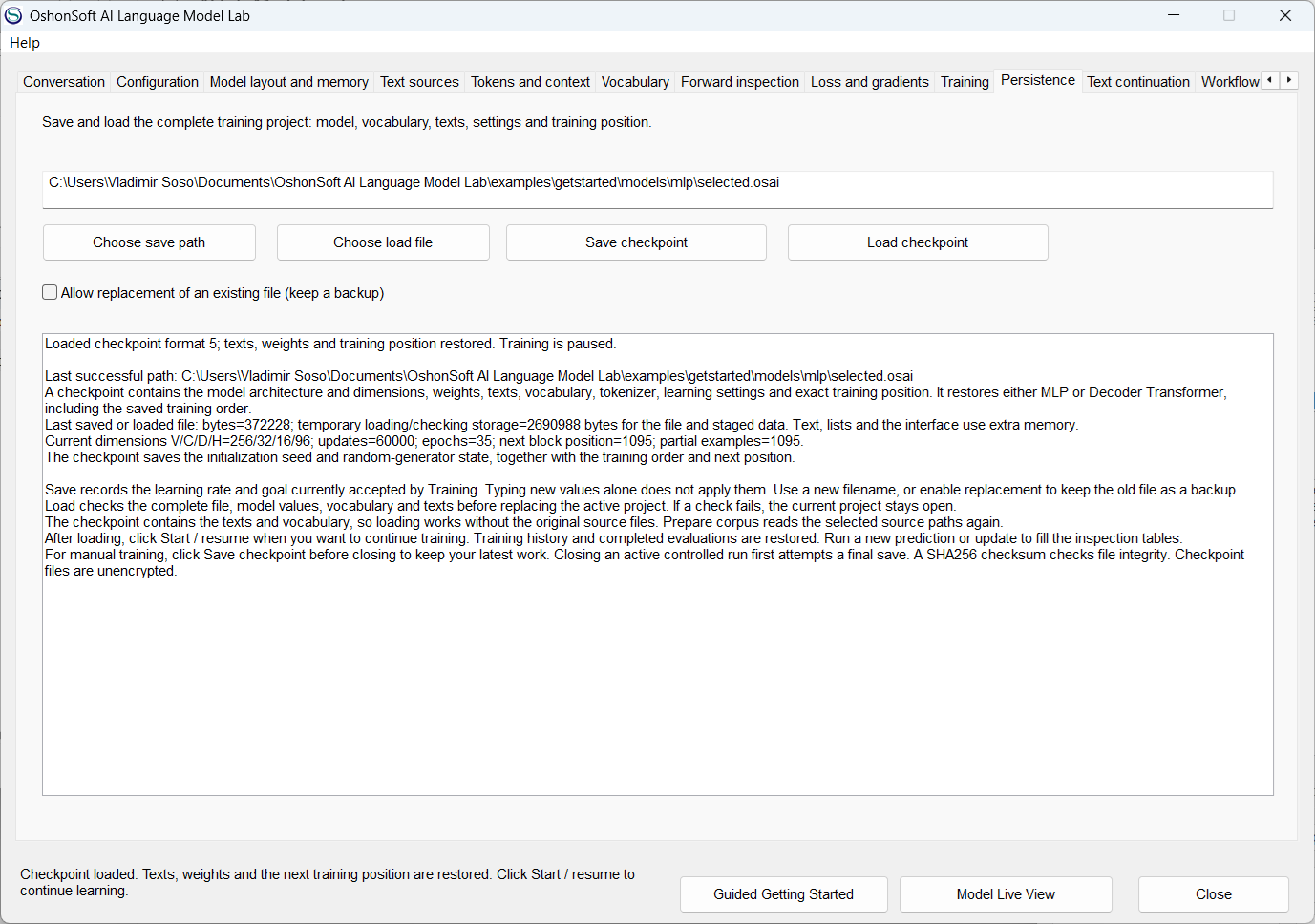
Persistence restores the model, embedded text, vocabulary and exact training position. The restored project waits for your next action.
Try a conversation exercise
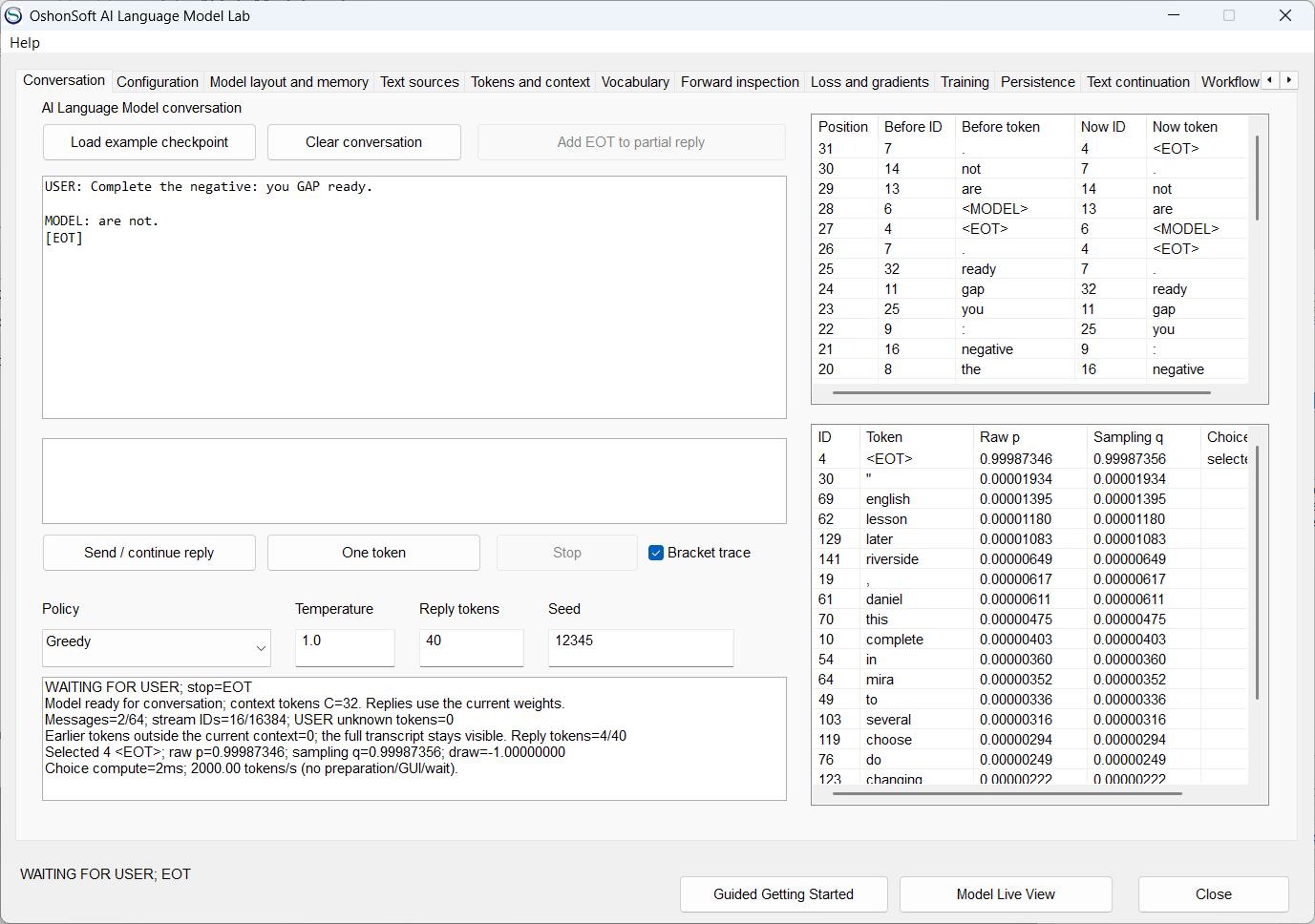
For the displayed English exercise, the MLP replies are not. and generates EOT. The context and candidate tables show the token choices behind this reply.
Continue a narrative
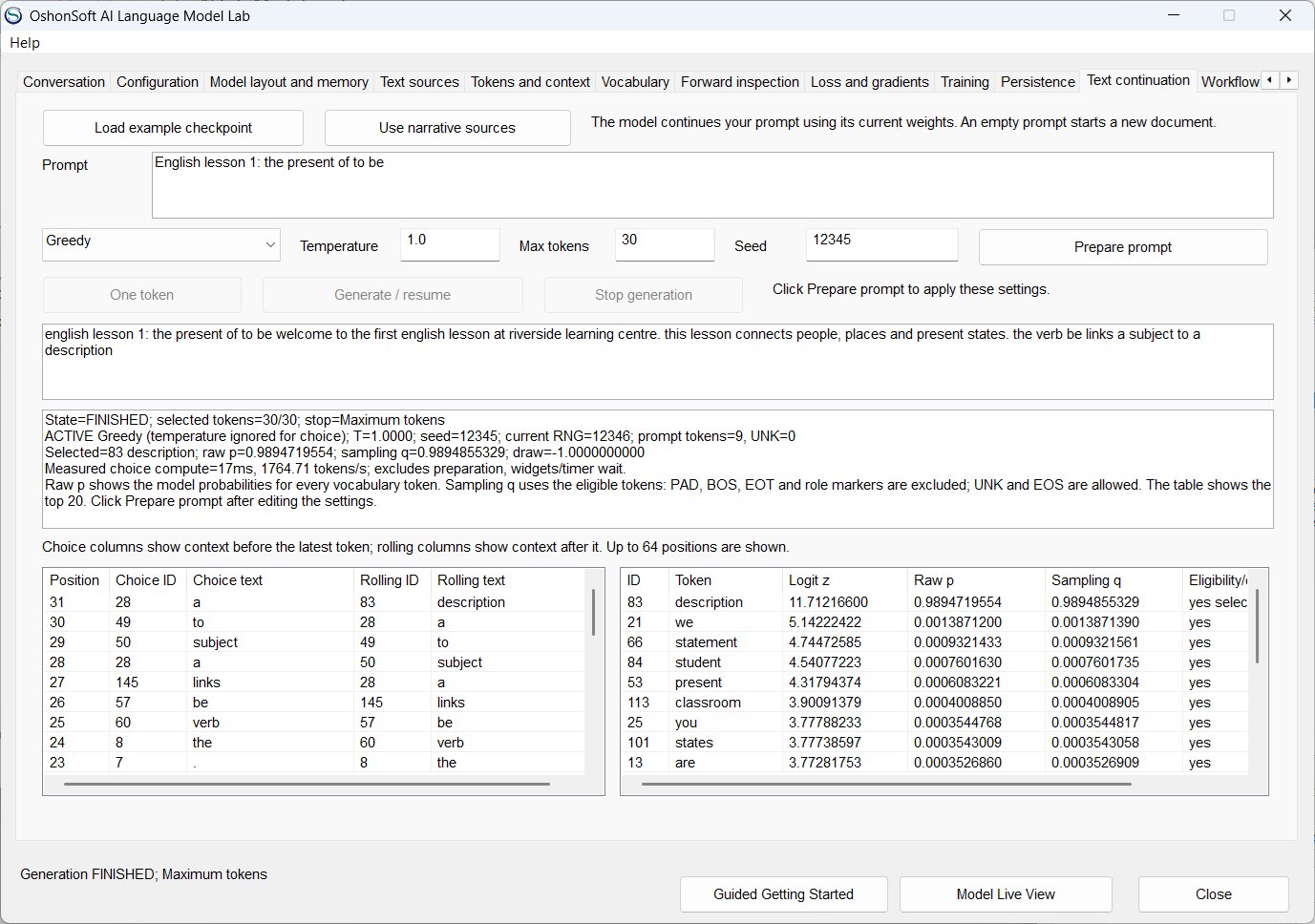
The model continues the familiar narrative title for 30 generated tokens. The displayed stop is Maximum tokens, so this example ends at the requested limit.
Compare fixed weights
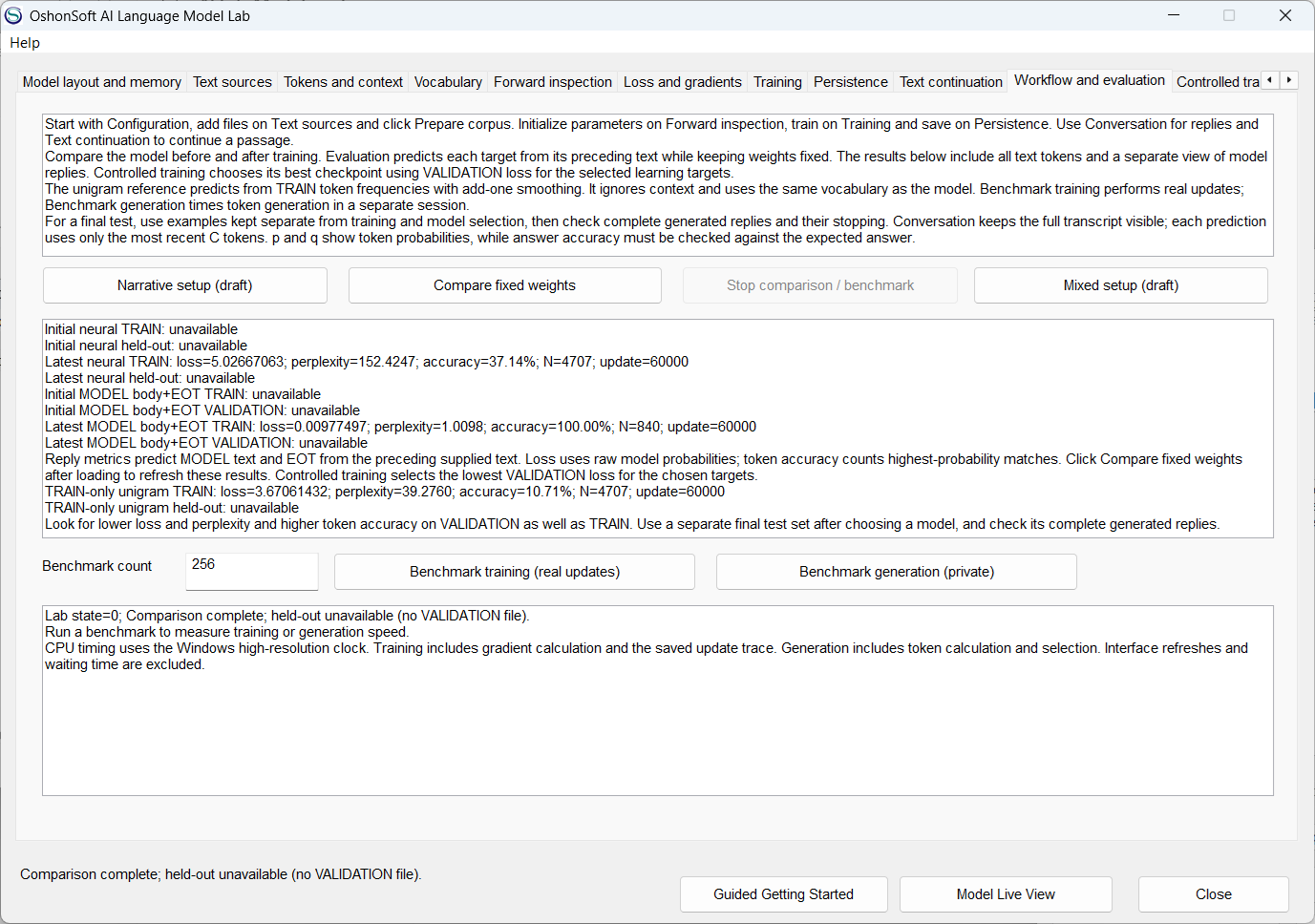
The page shows all-token and MODEL body/EOT TRAIN metrics, together with a TRAIN-only unigram reference. This loaded checkpoint has no VALIDATION source, so held-out metrics are unavailable.
5. Plan a saved training run
Choose Controlled training to continue an active project with validation and saved checkpoints. Choose Controlled project to train a fresh model and save complete question replies at selected updates.
Check controlled-training preflight
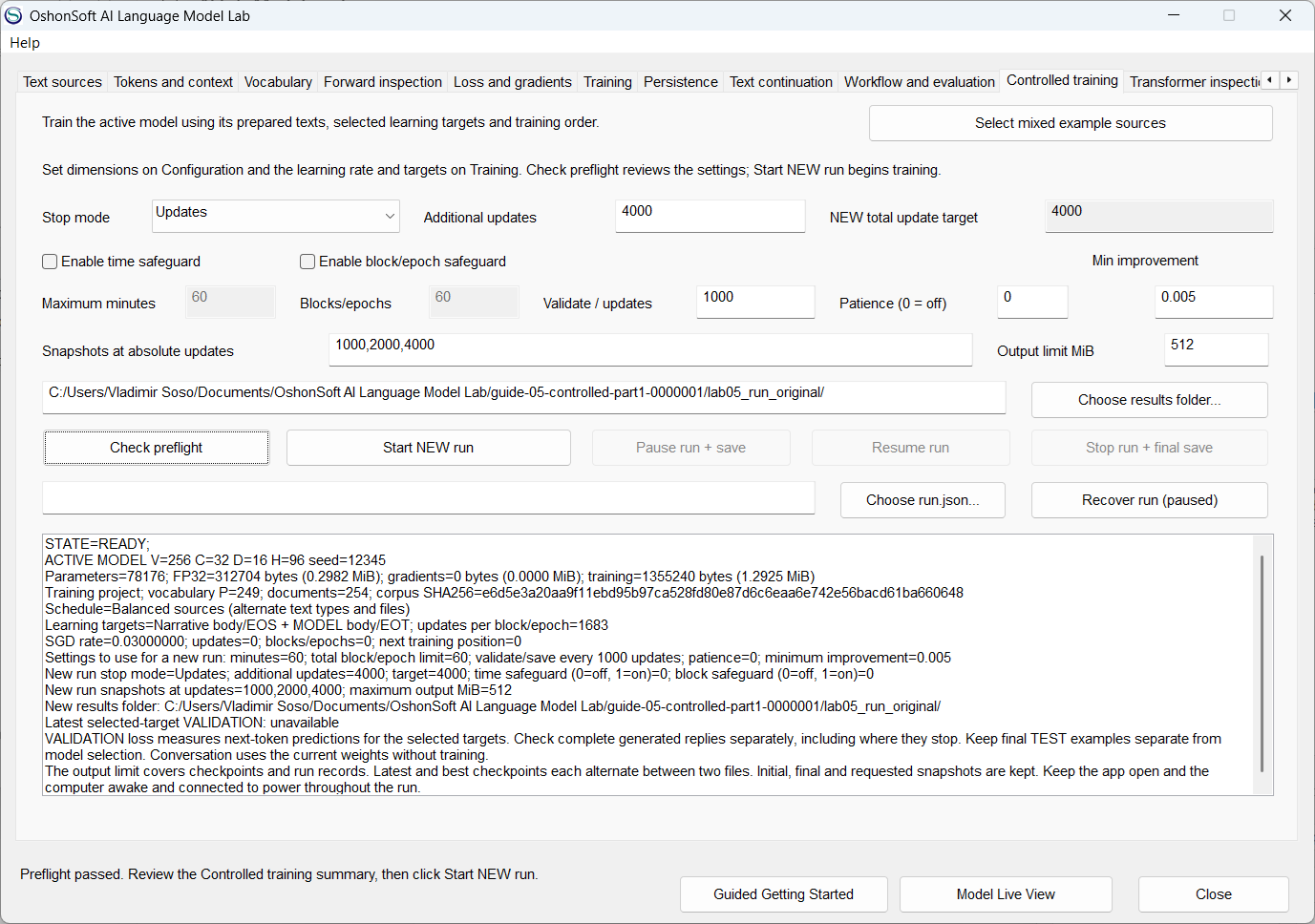
Preflight passes for a saved lesson project with separate validation text. Review the active settings and limits before Start NEW run; preflight itself does not start training.
Prepare a question-checkpoint project
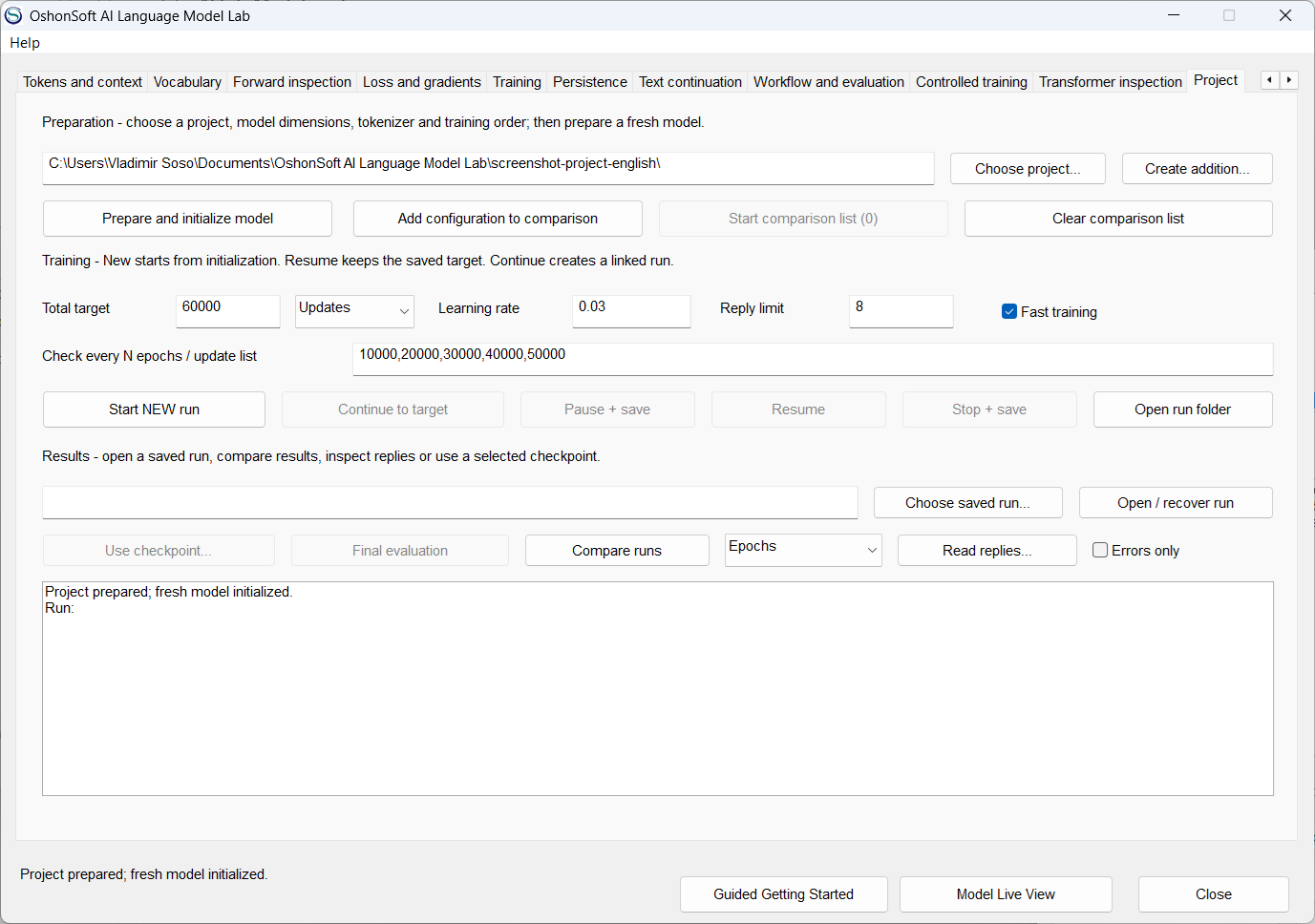
The English project uses a 60000-update target, intermediate answer checkpoints and an eight-token reply limit. Prepare the model, review the settings and start the run.
6. Explore the Decoder Transformer
The Transformer uses the same source and conversation workflows, with causal attention in place of the MLP hidden layer. In Transformer inspection, choose a block, head, query and intermediate array to inspect its actual values and derivatives.
Choose the Transformer layout
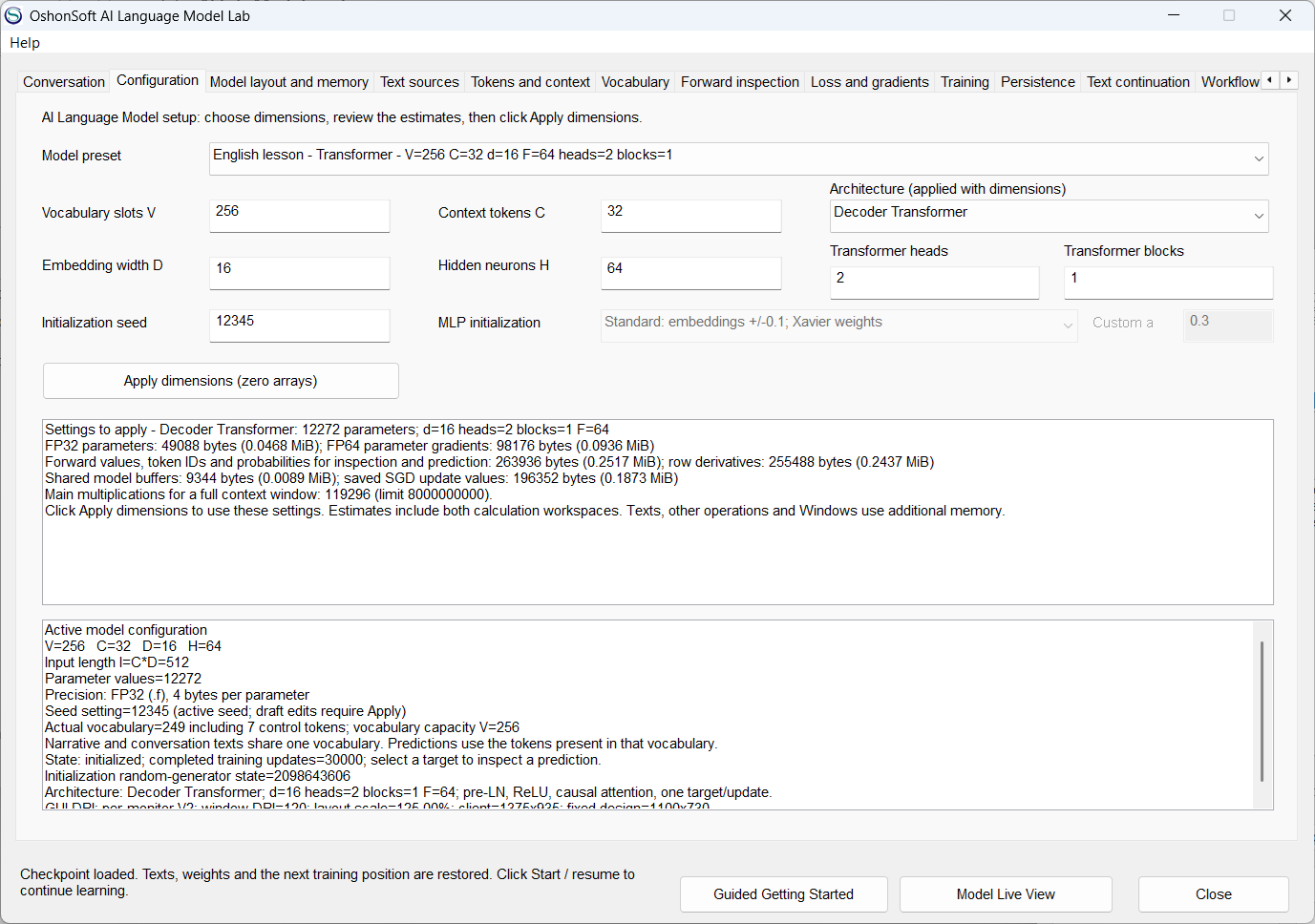
The English lesson Transformer has V256, C32, model width 16, feed-forward width 64, two heads and one block.
Try the trained Transformer
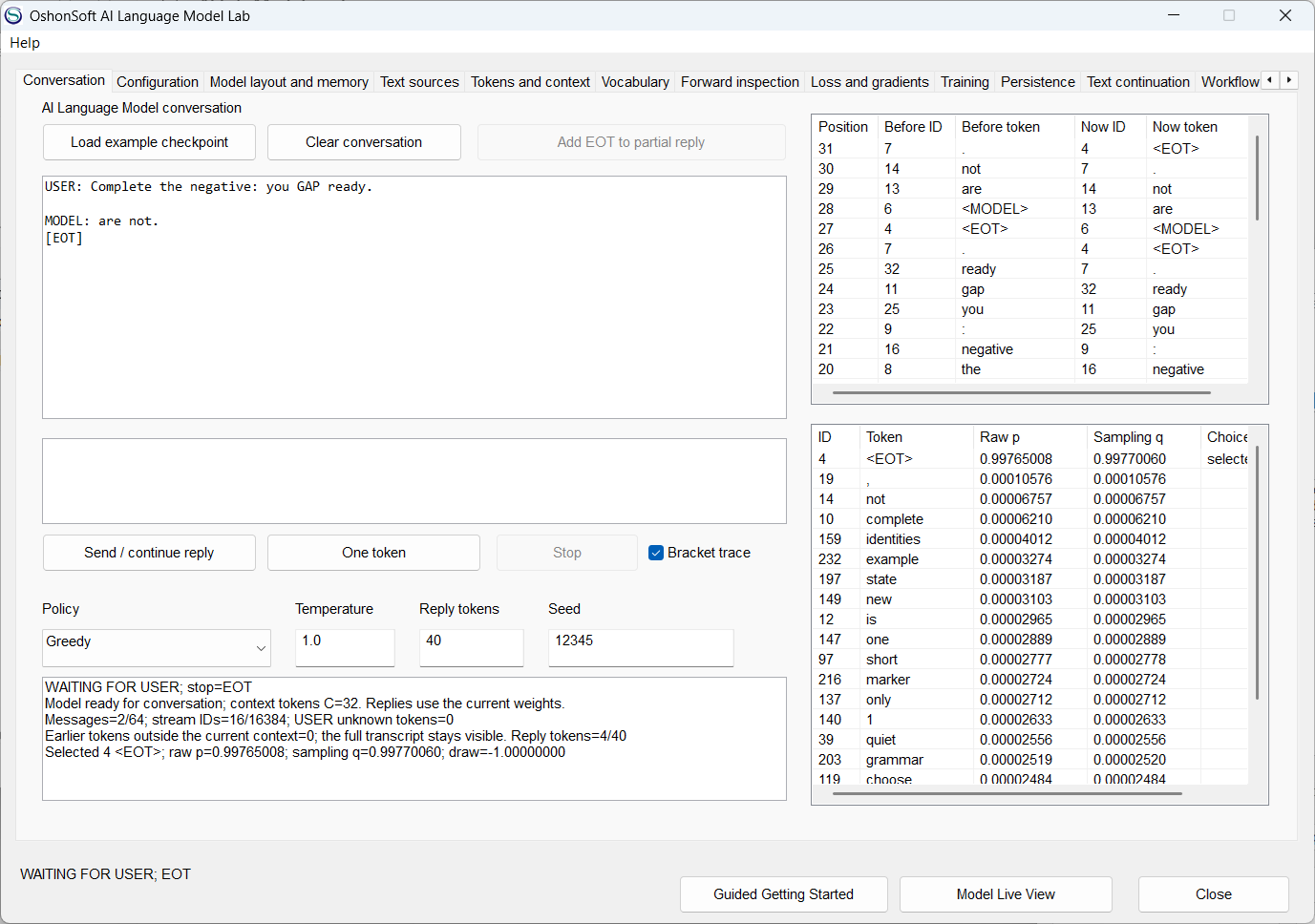
The selected Transformer generates the answer to a grammar exercise and stops at EOT. Its rolling context and token probabilities remain visible.
Inspect Q and its gradients
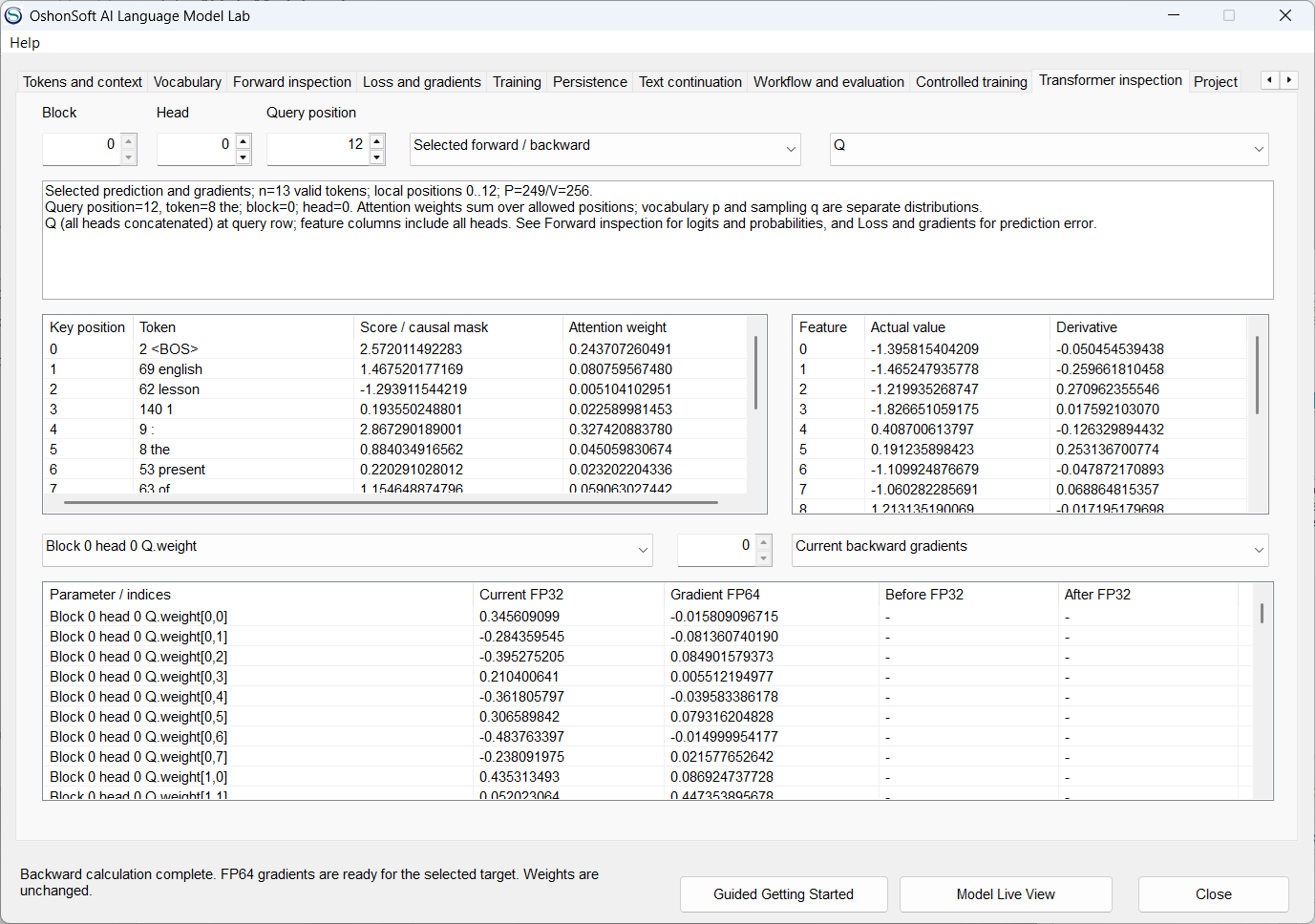
Choose a block, head and query position. The tables display the actual Q coordinates and derivatives of its learned projection parameters.
Read the causal mask and K
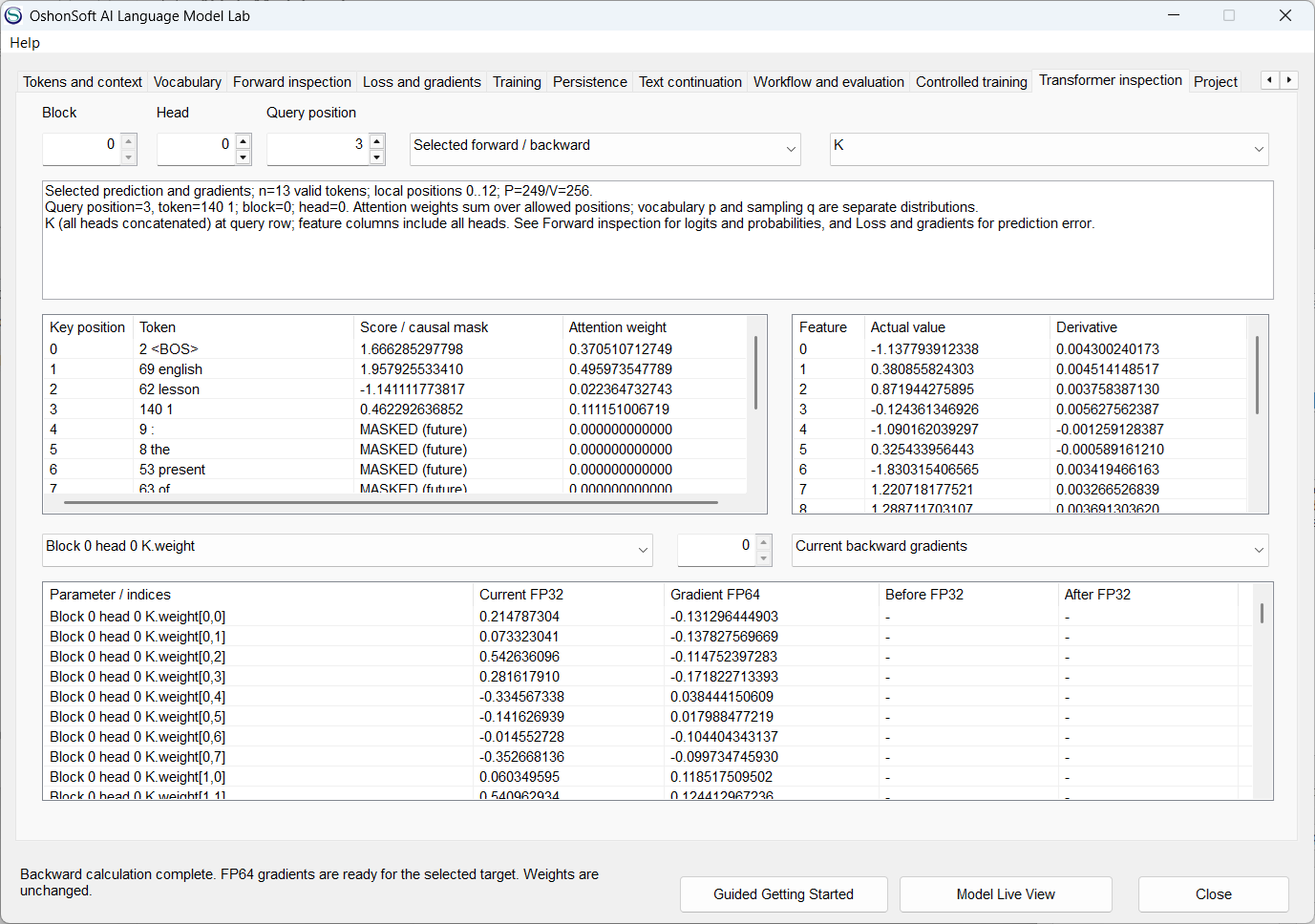
A query can attend to its own position and earlier positions. Future keys are marked MASKED. The feature table displays the actual K coordinates and their derivatives.
Inspect V and its derivatives
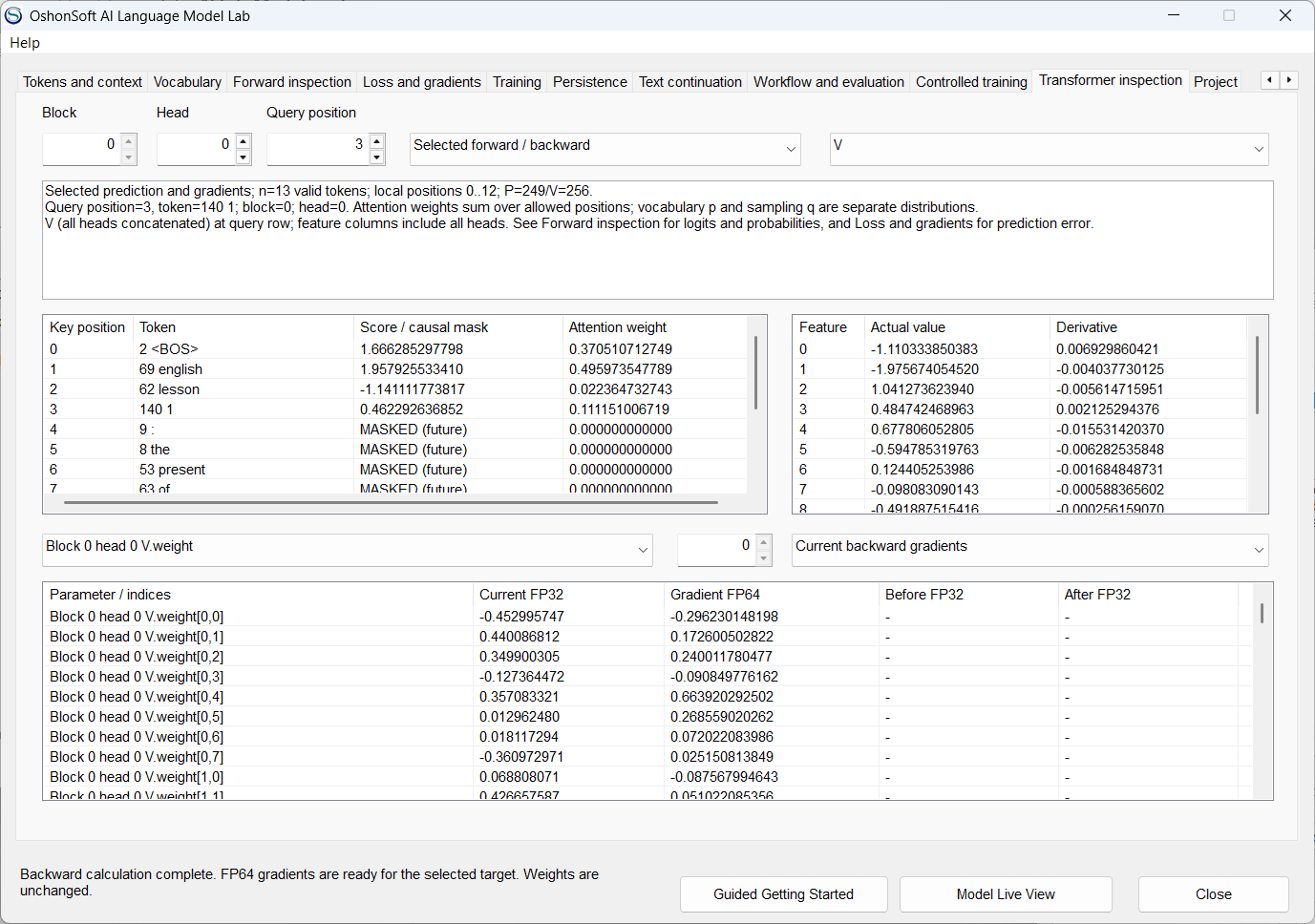
Switching the matrix view to V shows another part of the same selected calculation. Changing this view does not perform a new training update.
7. Watch MLP learning and retain one SGD step
Open Model Live View while working with the MLP. Live modes follow successful updates; Freeze holds the displayed sample. One SGD Step retains a calculation so you can move through its phases, and Timeline follows fixed parameter identities across observed updates.
Follow learning changes
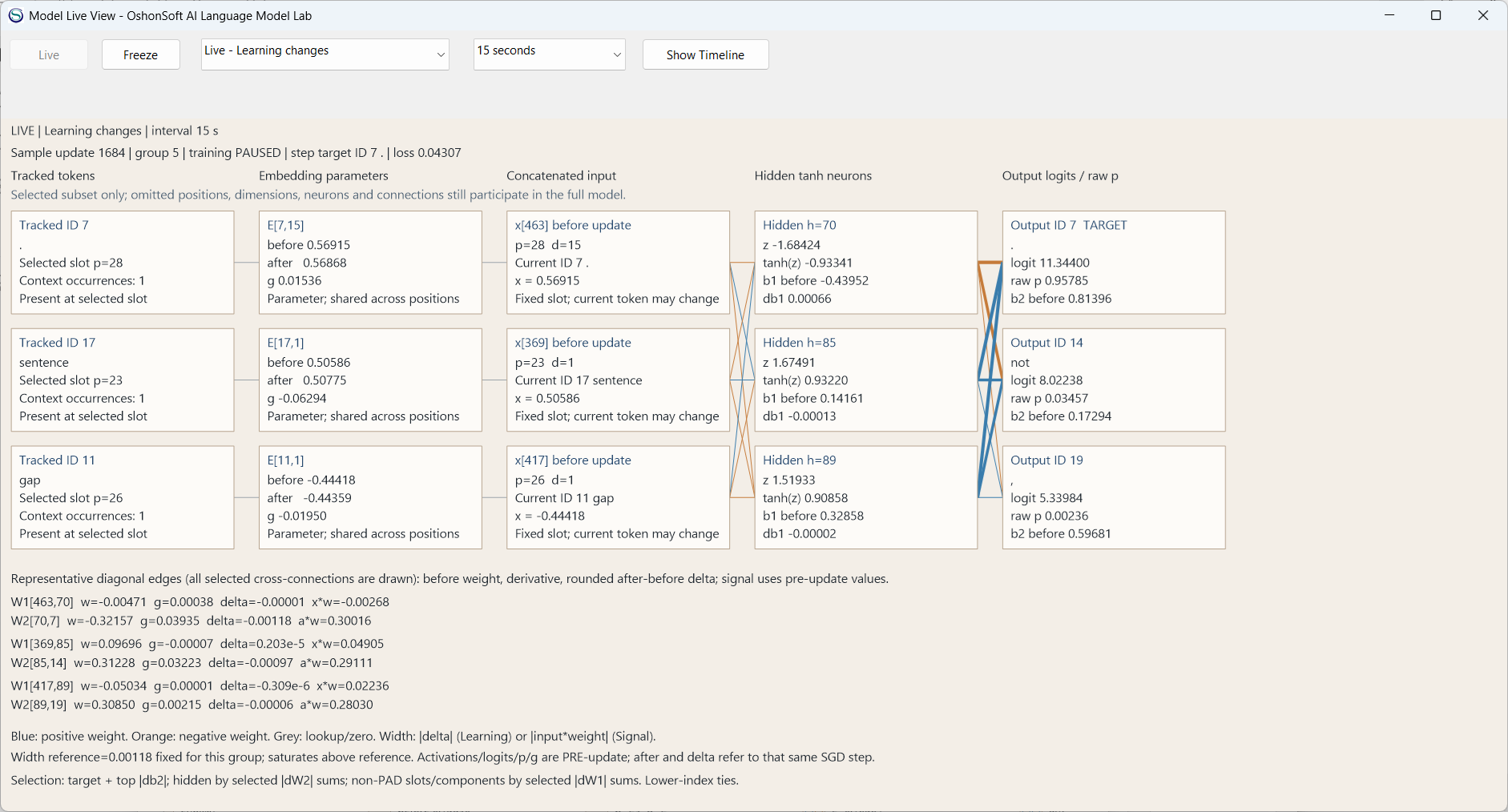
A real training update supplies the tracked embeddings, input slots, hidden neurons, probabilities and parameter changes shown by this diagram.
Freeze signal contributions
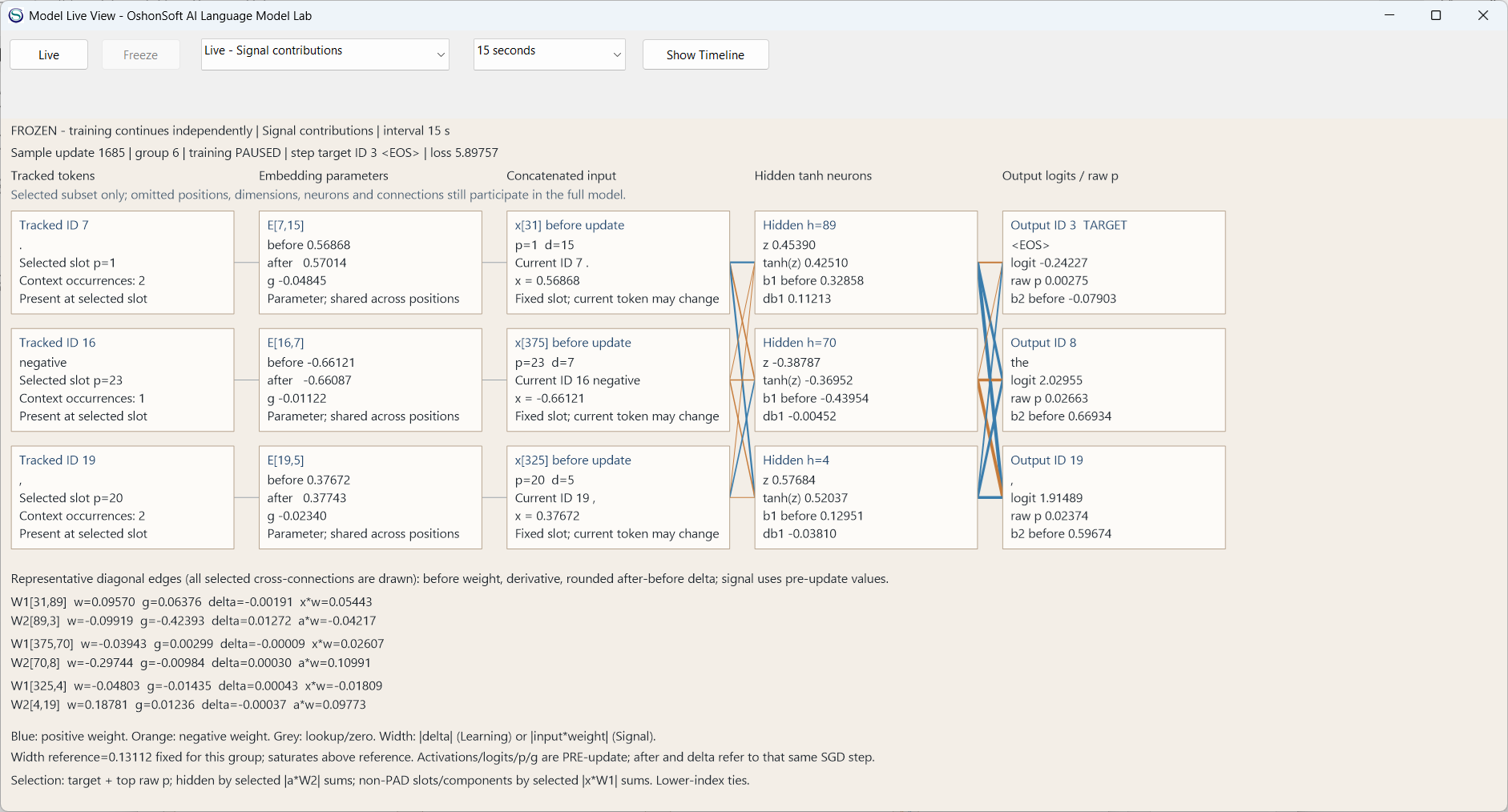
In Signal mode, edge widths follow forward signal contributions. Freeze retains the displayed sample while training remains under the main controls.
Read the hidden calculation
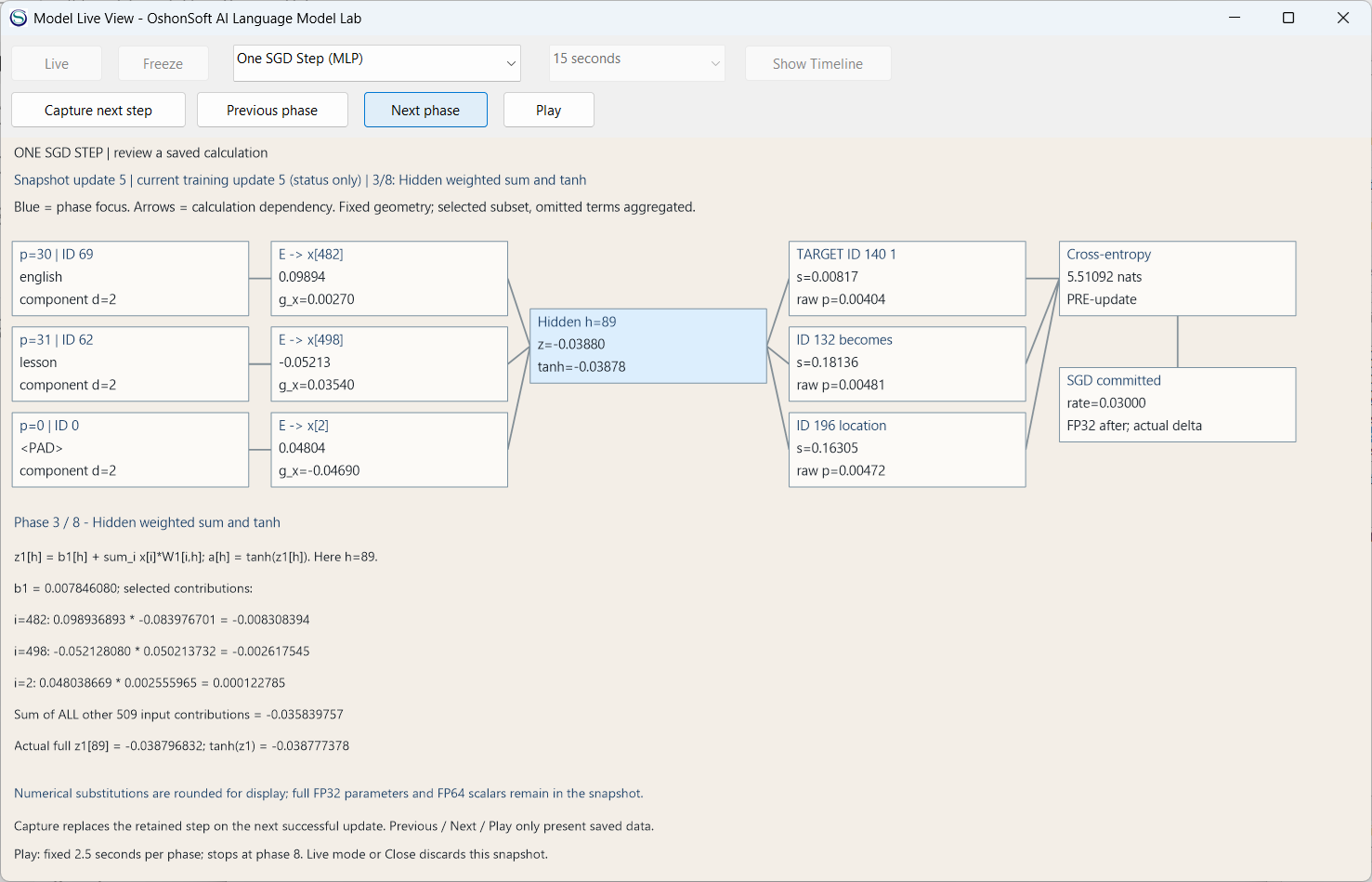
Phase 3 of 8 follows the weighted sum into tanh with concrete values from the retained update.
Follow backpropagation
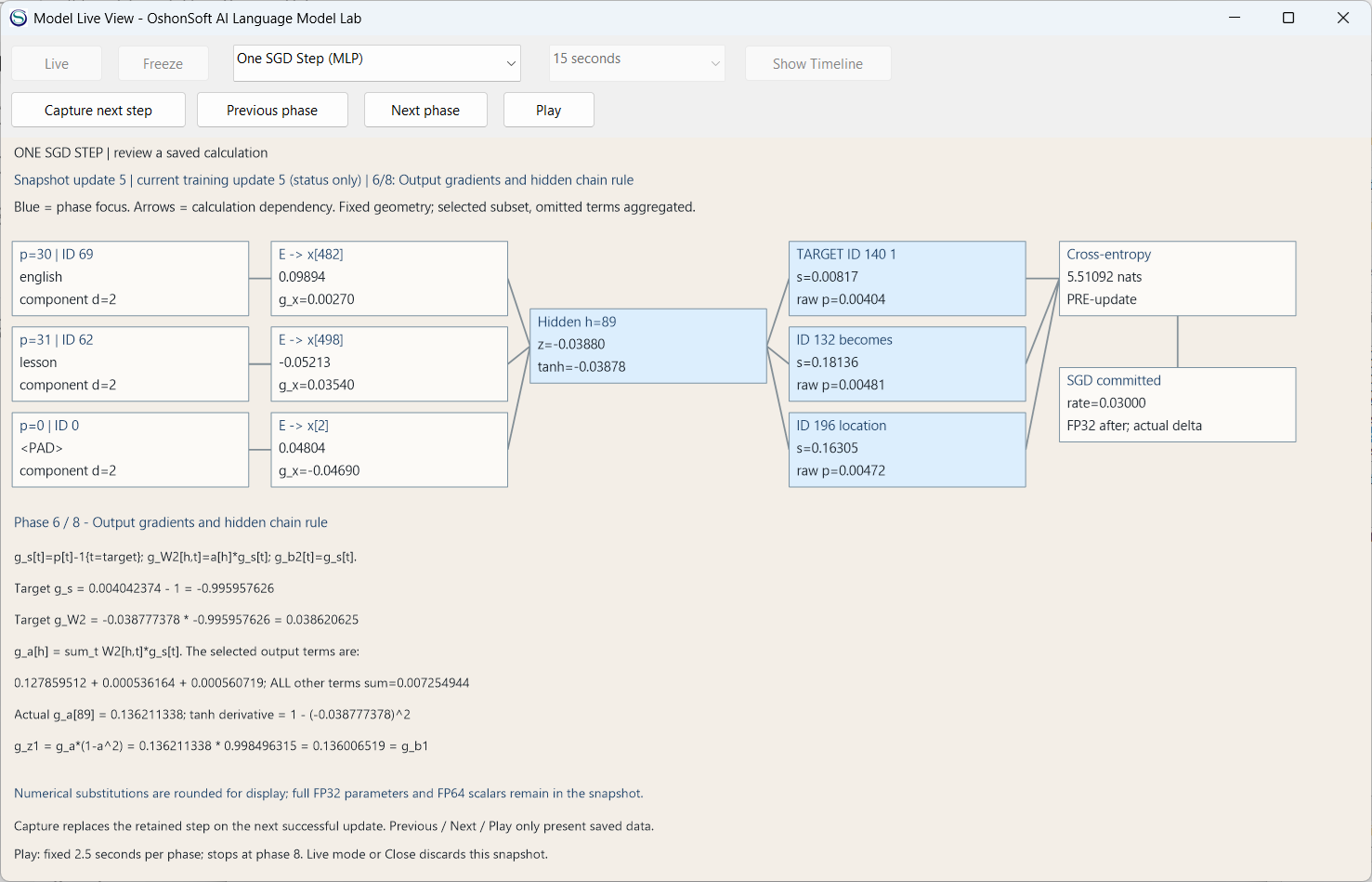
Phase 6 of the same retained update shows the output gradients and the chain rule through the hidden tanh neuron. Moving between phases changes the explanation, not the weights.
Inspect the atomic parameter update
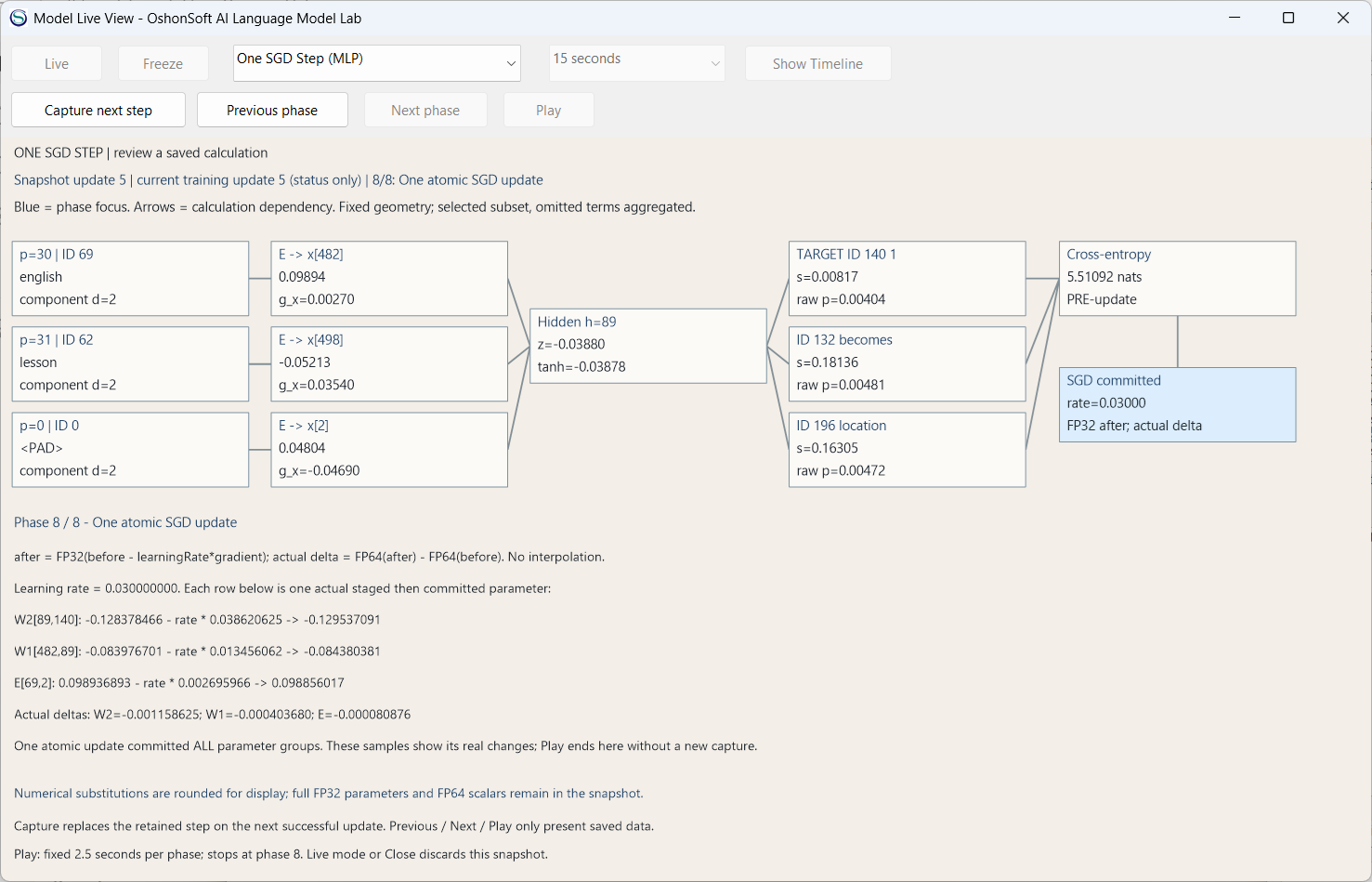
Phase 8 relates the gradient and learning rate to the stored FP32 values before and after SGD, including the rounded change.
Track learning on the Timeline
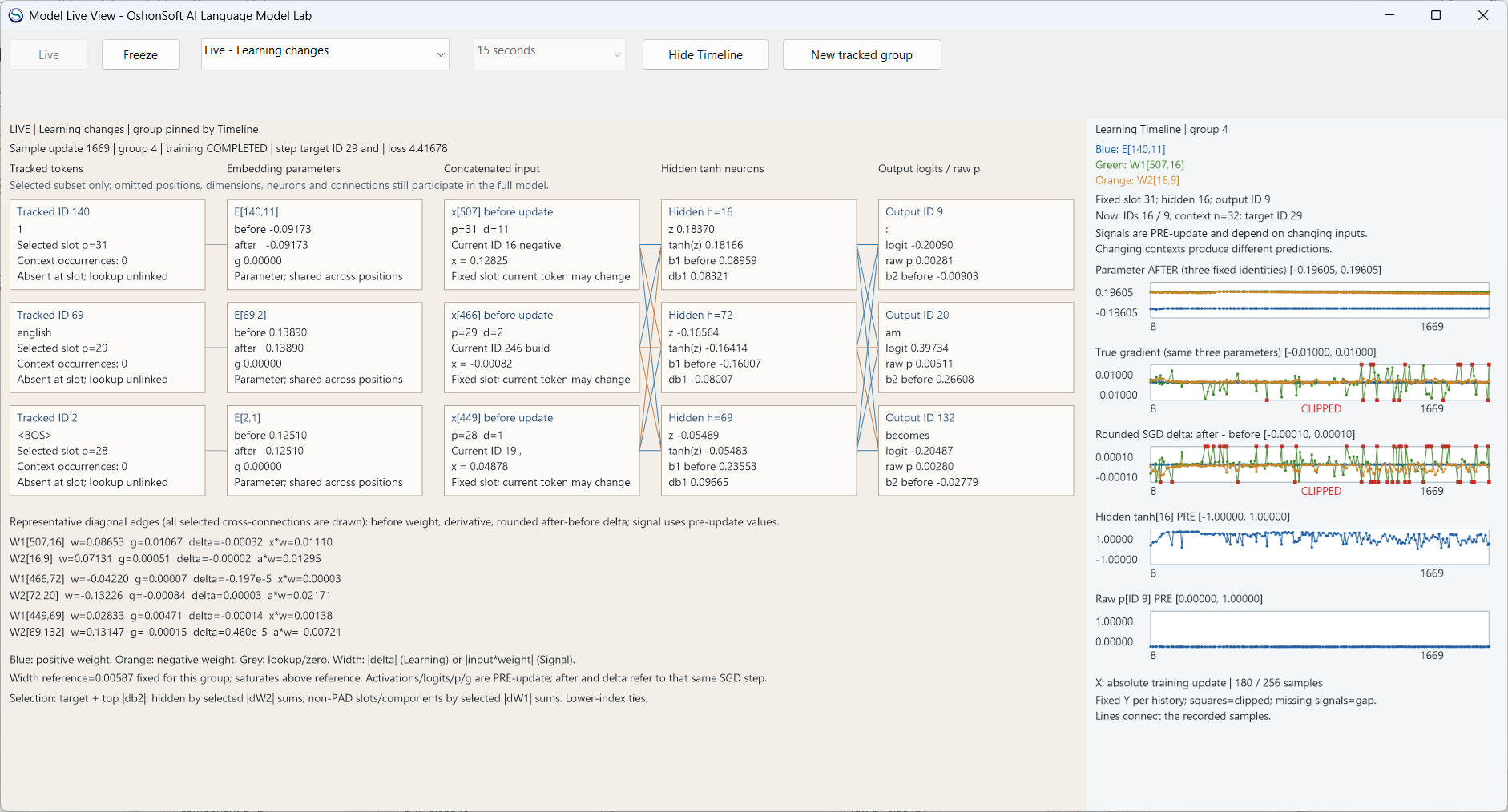
The MLP Timeline retains observed training samples. Read the fixed parameter labels, update distances and clipping markers when comparing the plots.
8. Watch attention and its Timeline
The Transformer Live View follows an attention path in a fresh guide model. The Timeline pins selected identities while the examples and token occupants change. These are observed training samples; use fixed-weight evaluation when comparing aggregate prediction quality.
Follow an attention path
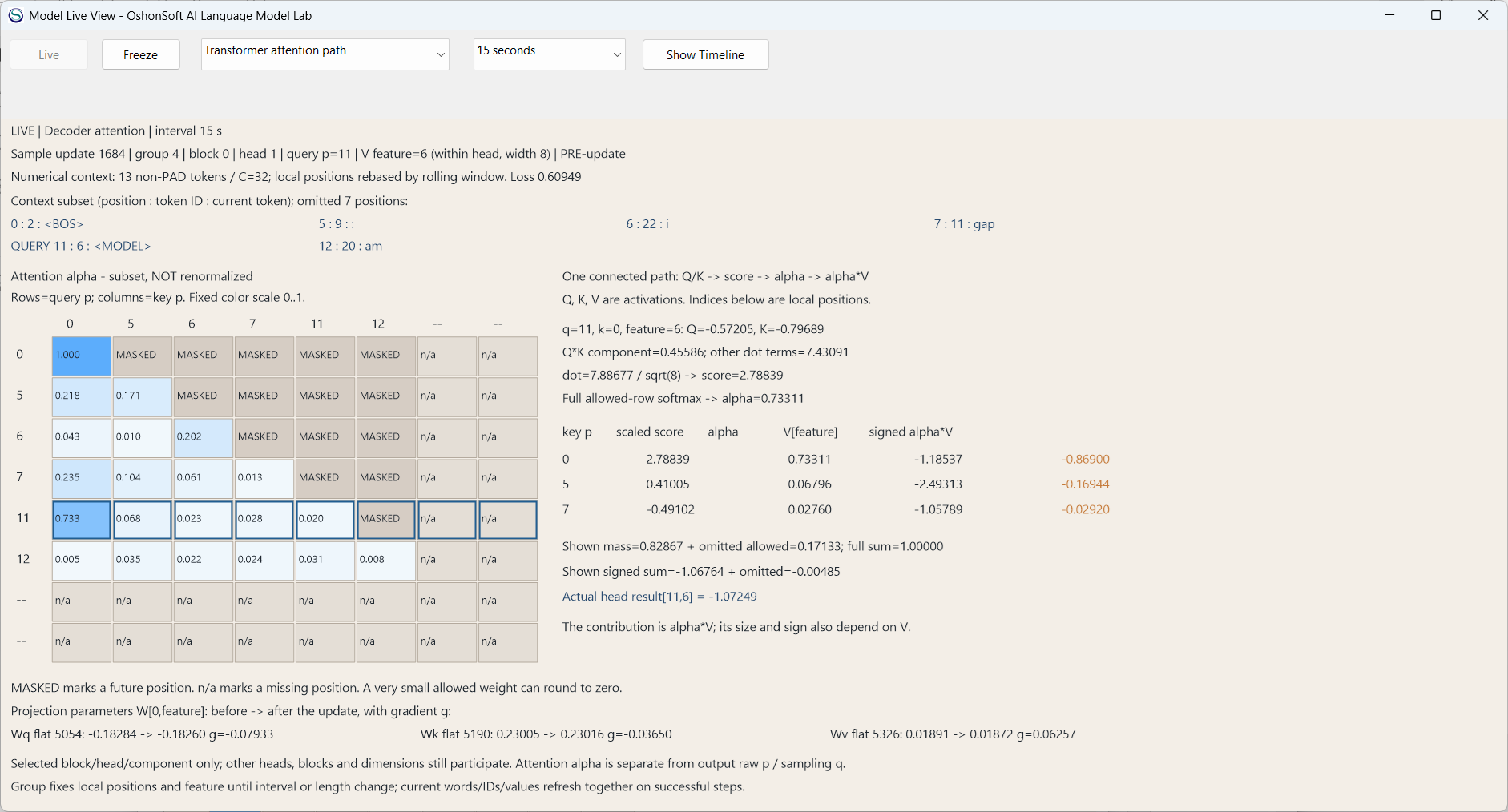
Follow the displayed Q/K score into attention alpha and the signed alpha-times-V contribution. The heatmap distinguishes allowed positions from causal masks.
Freeze the Transformer Timeline
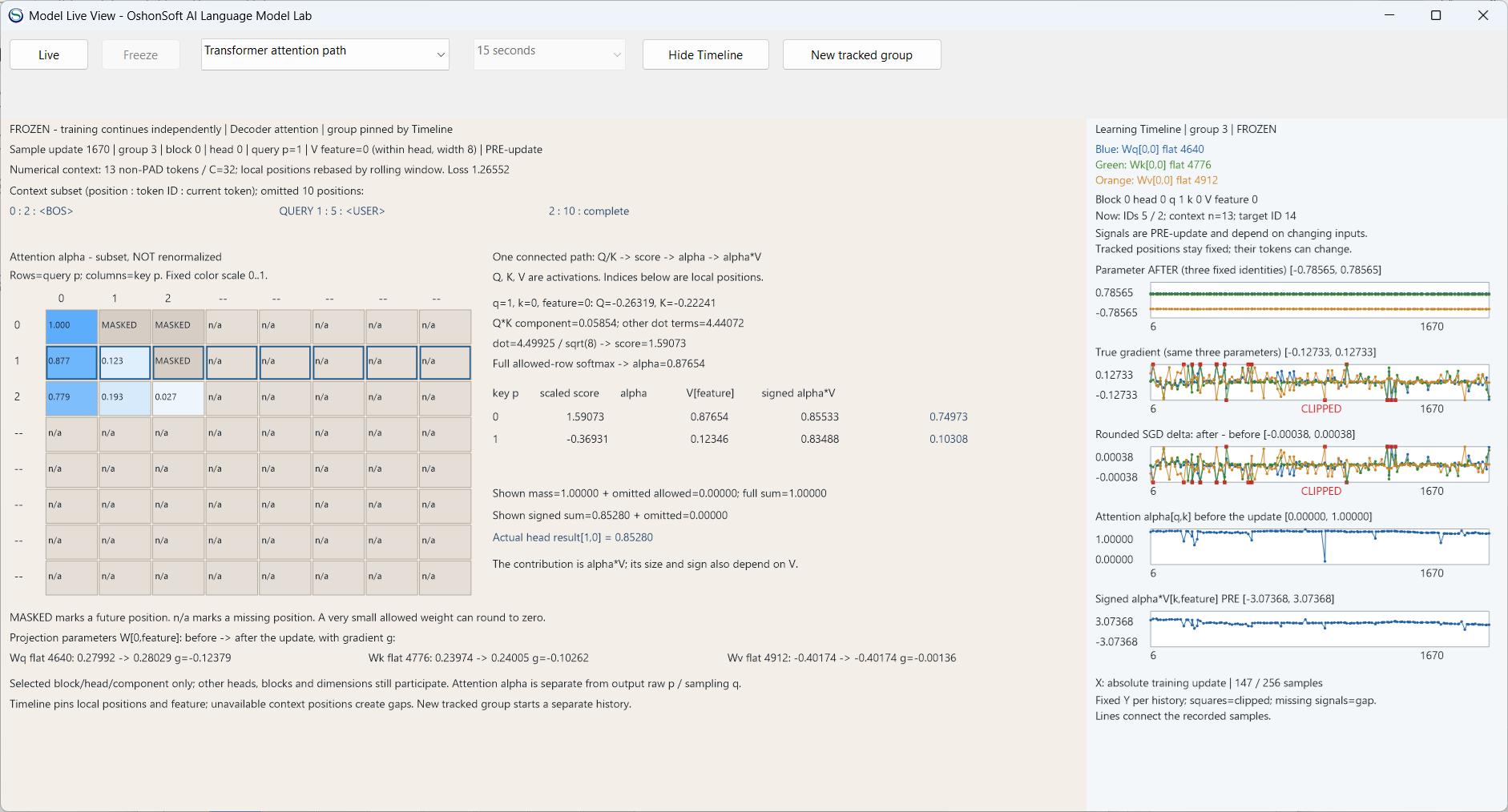
The frozen Timeline retains its observed samples. The plots share fixed tracked parameter identities and show gradients, stored changes, alpha and signed contribution.
9. Learn operations on sixteen bits
Four small MLP examples start from random weights and learn from 256 input/output pairs. NOT16, AND16 and Copy16 train for one epoch. XOR16 uses Wider embeddings and trains for six epochs; its selected model is the checkpoint after five epochs. The model generates each output bit and its stopping token.
NOT16
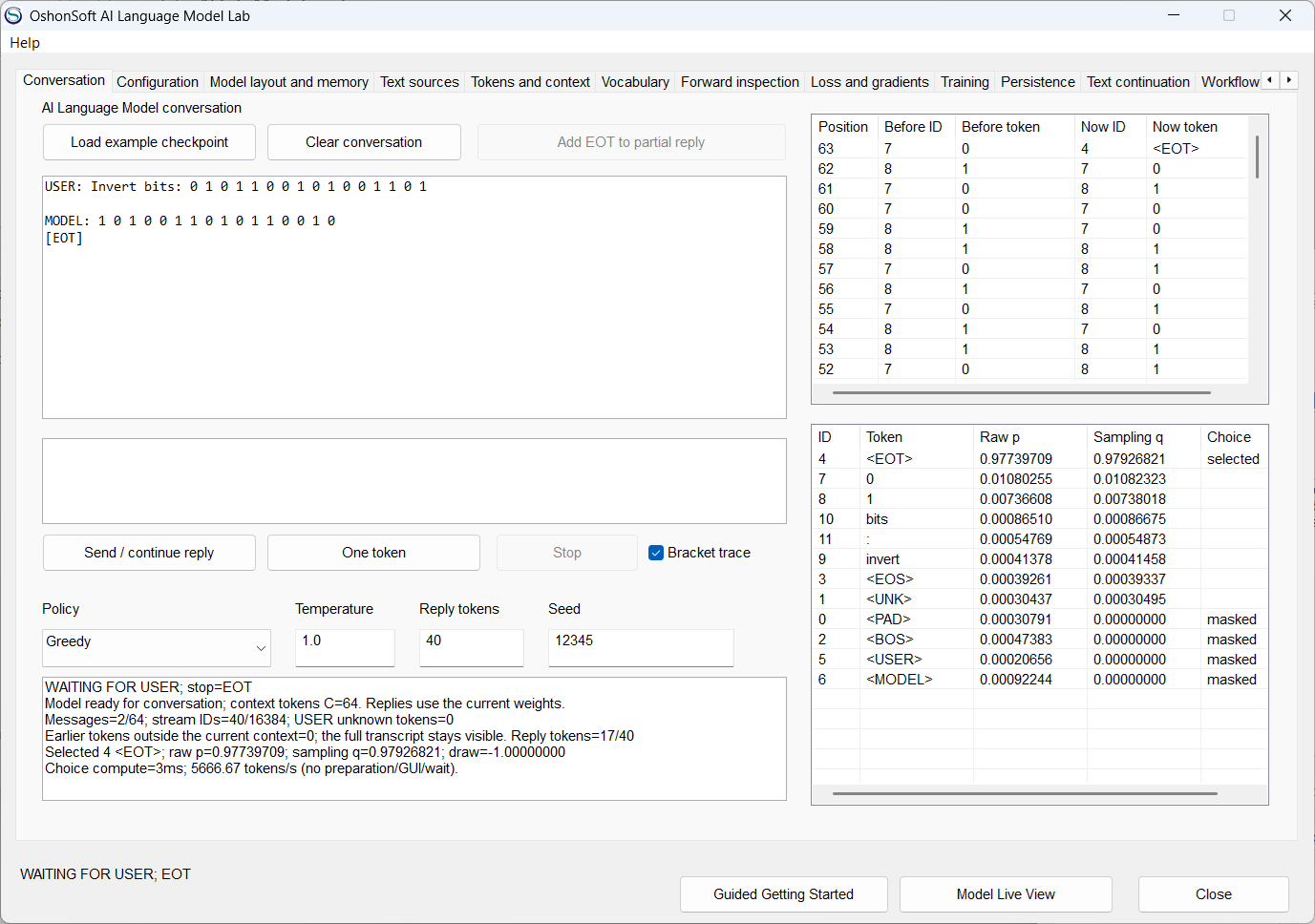
Invert each input bit. Final evaluation: 512/512 new ordinary inputs and 64/64 held-out combinations, including correct stopping.
AND16
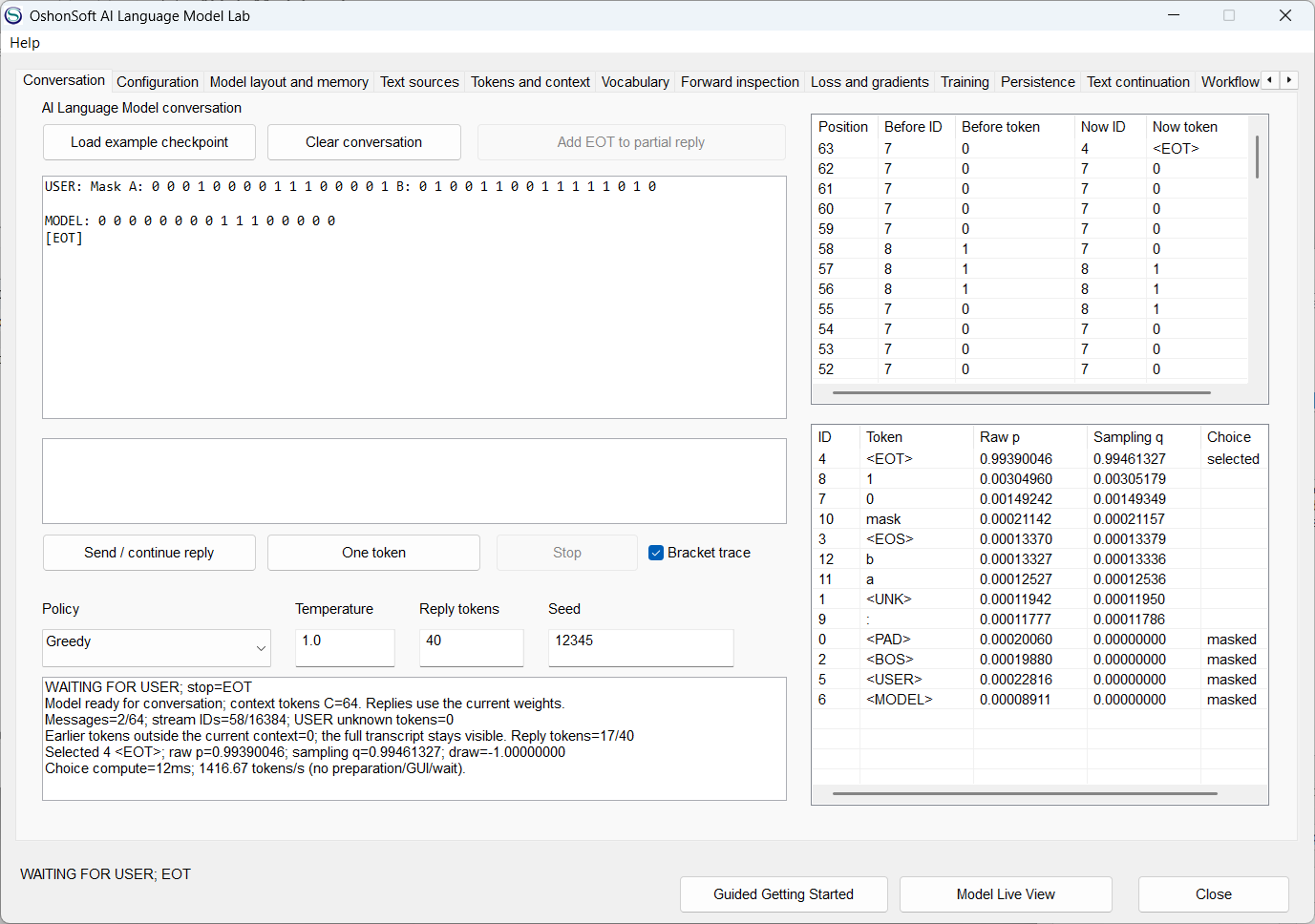
Output 1 where both input bits are 1. Final evaluation: 512/512 new ordinary inputs and 64/64 held-out combinations, including correct stopping.
Copy16
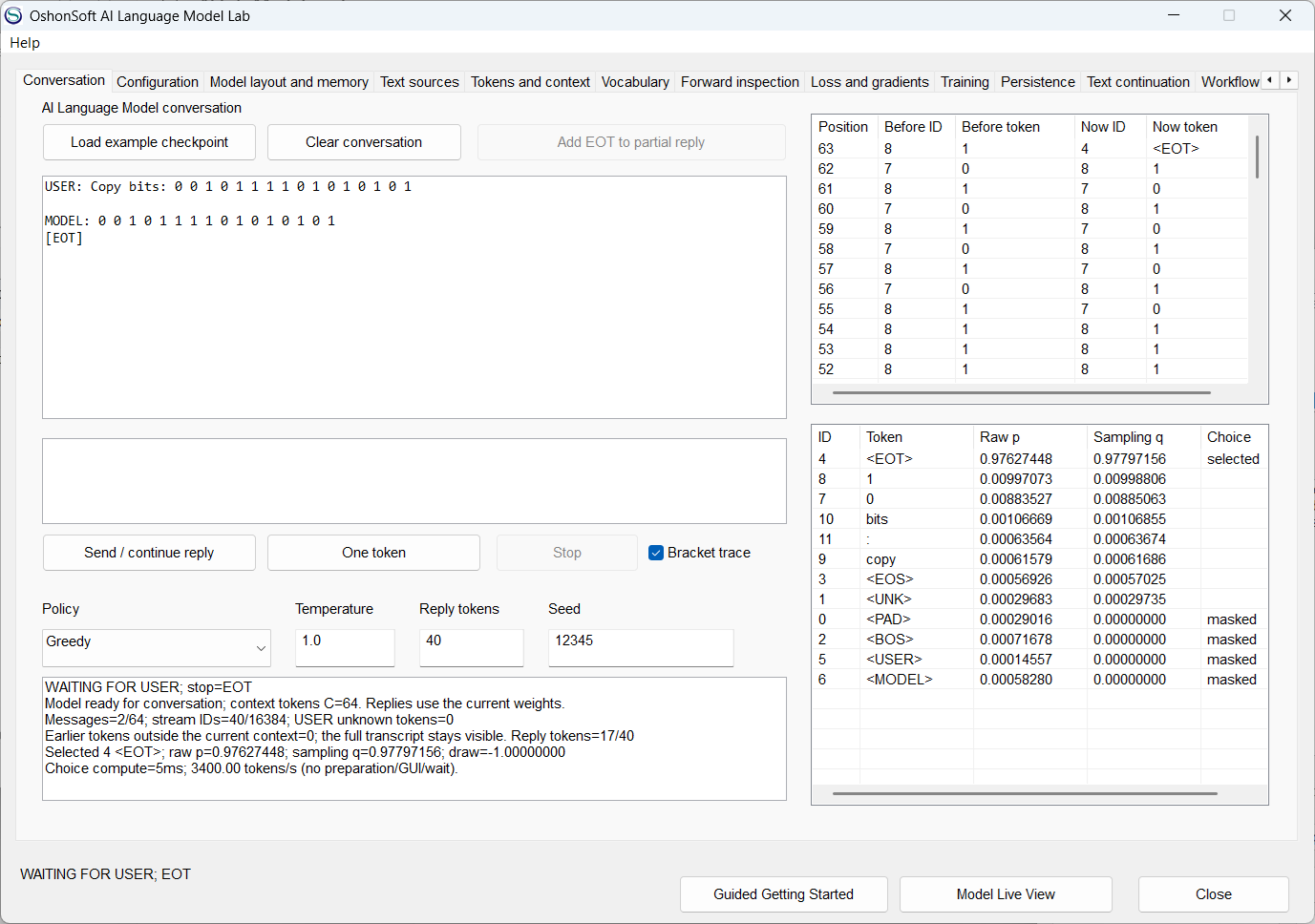
Reproduce the sixteen input bits. Final evaluation: 512/512 new ordinary inputs and 64/64 held-out combinations, including correct stopping.
XOR16
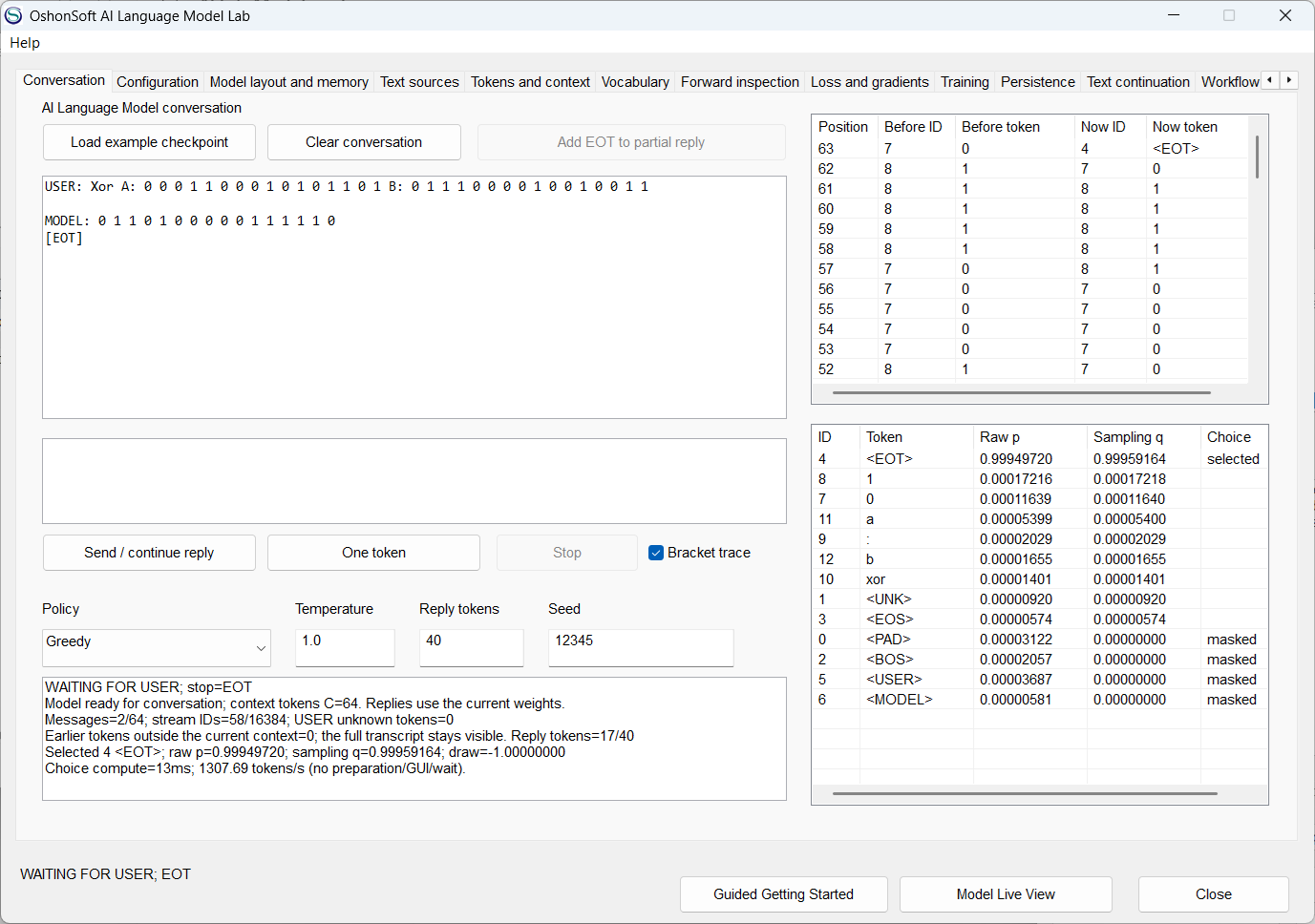
Output 1 where the corresponding input bits differ. Final evaluation: 2048/2048 new ordinary inputs and 128/128 held-out combinations, including correct stopping.
All four examples learn the trained sixteen-bit task. Separate different-length questions gave 0/32 for each of the first three models, and 0/32 at both eight and twenty-four bits for XOR16. These results show why it is useful to measure a new input length separately.
To repeat an example, choose its Bits lesson in Guided Getting Started. The guide copies the inputs into your results folder and trains a fresh model. After training, open Project, use the selected checkpoint and click Final evaluation to answer the separate questions/final files. Read every Prompt, Gold and Raw reply in the saved run. To try the supplied model immediately, load models/selected.osai from the corresponding example through Persistence.
10. Learn arithmetic and counting
Seven small MLP examples learn digit operations, counting and addition from ordinary USER/MODEL pairs. Each model generates its own intermediate fields and final answer. The supplied guides initialize fresh weights, train to a fixed target and save complete replies at the planned checkpoints.
Complement eight digits
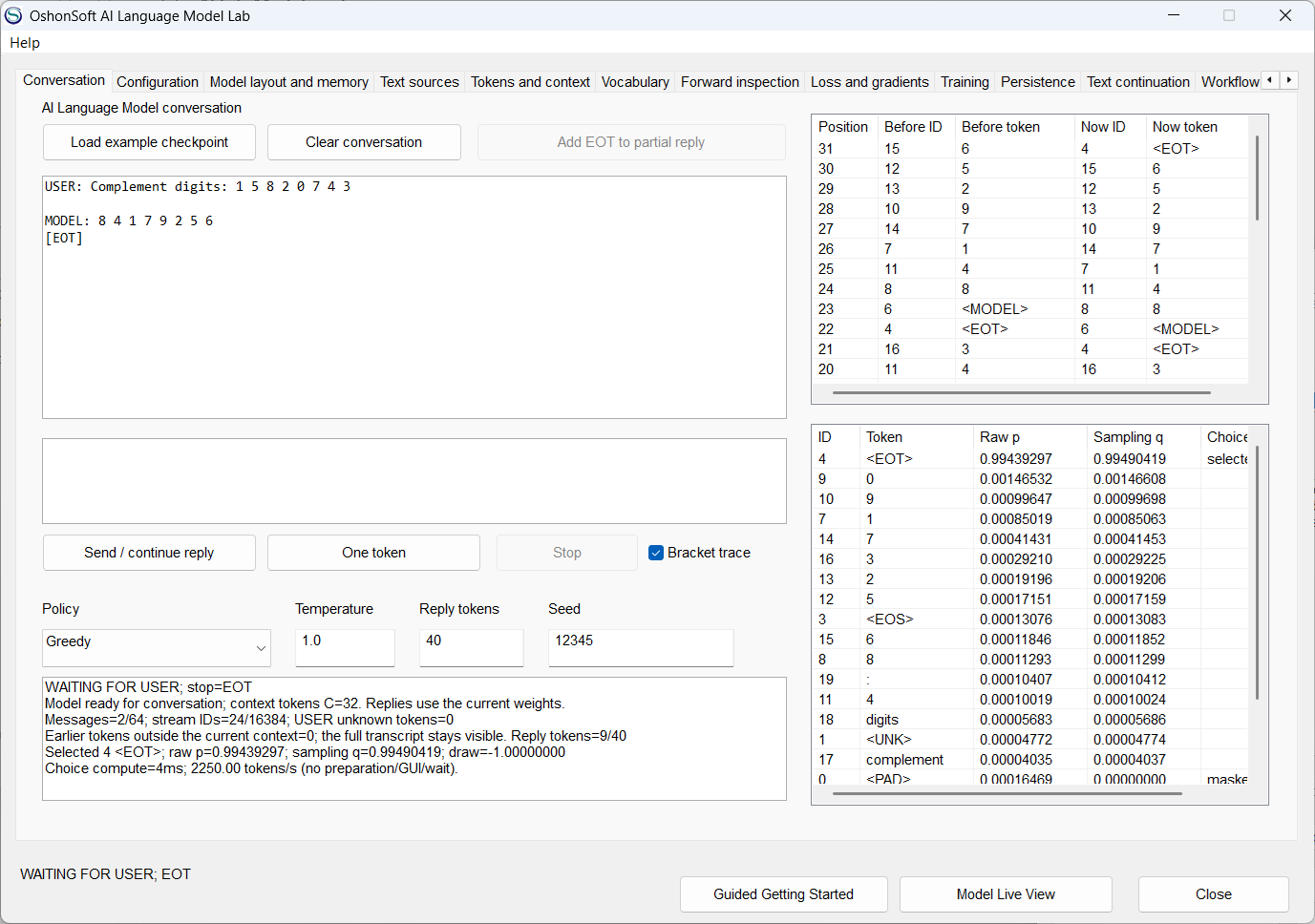
Replace each digit with 9 minus that digit. Final evaluation: 512/512 ordinary inputs, 64/64 held-out combinations, 0/32 four-digit inputs.
Add a decimal column
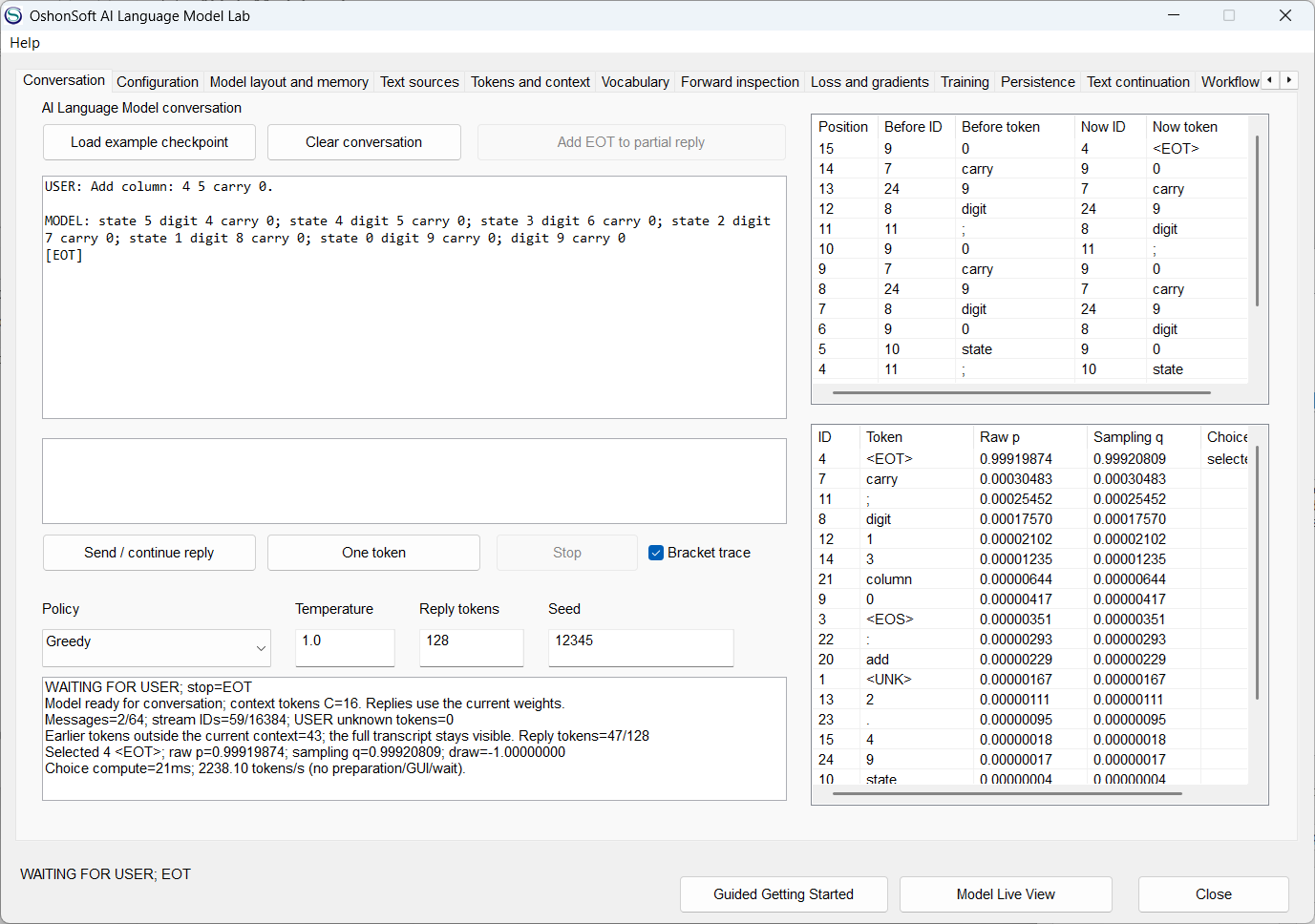
Generate the successive states of a digit sum, then its digit and carry. Final evaluation: 20/20 ordinary inputs.
Add two decimal columns
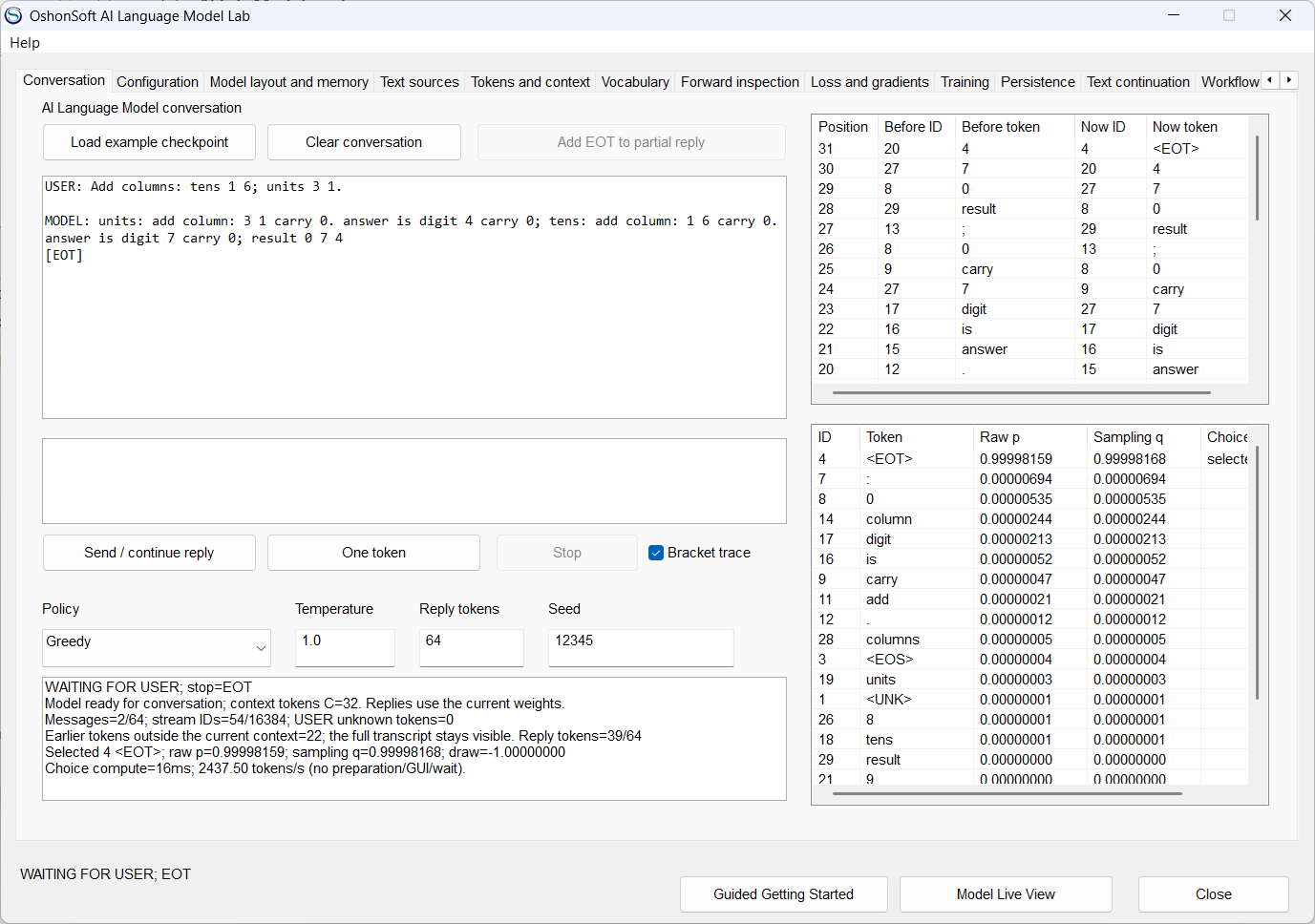
Solve the units column, carry into the tens column and produce three result digits. Final evaluation: 253/253 ordinary inputs, 64/64 held-out combinations.
Count a short interval
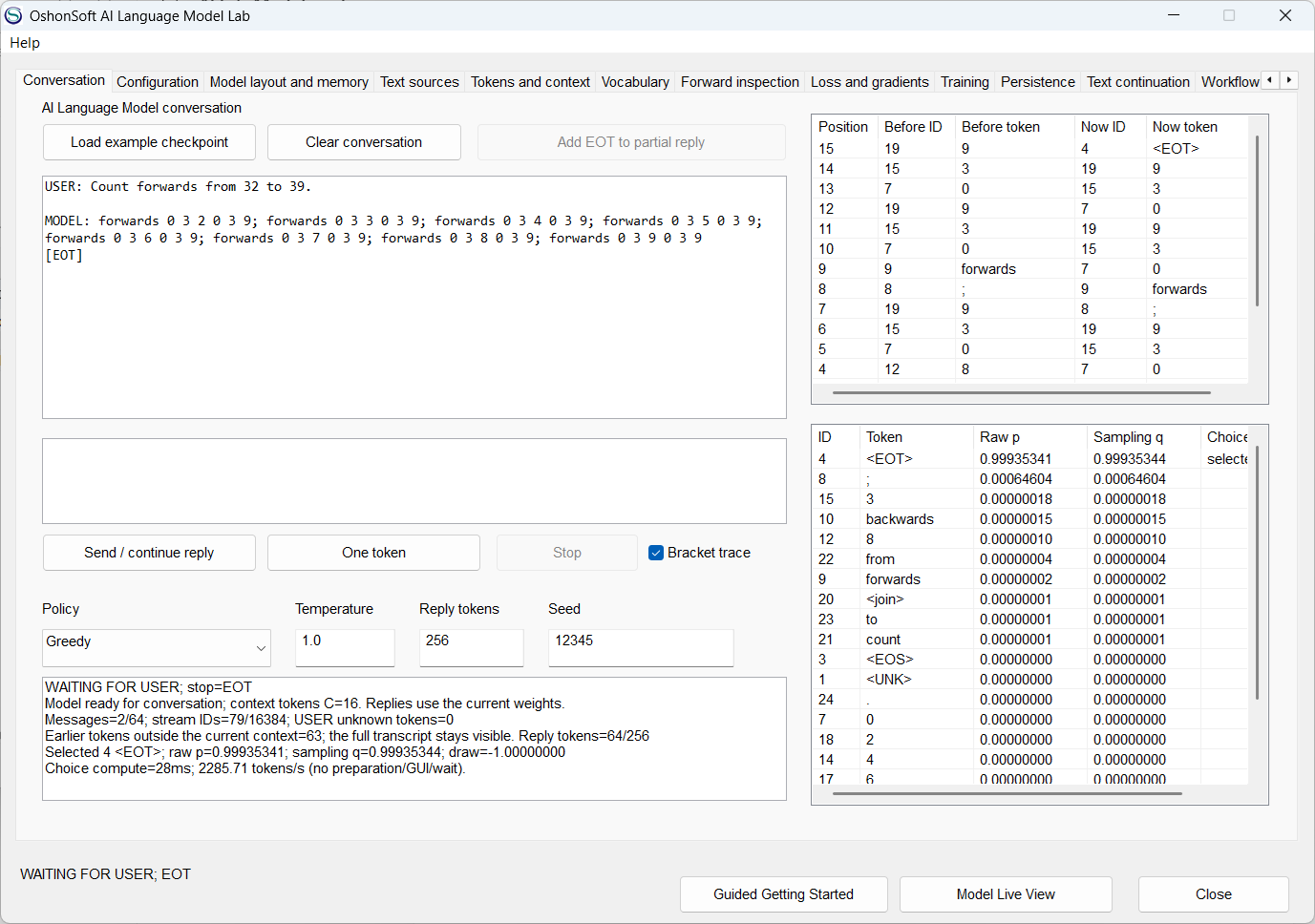
Generate successive current-value and endpoint fields for an interval in 1-100. Final evaluation: 234/236 ordinary inputs, 8/48 longer intervals.
Count one step
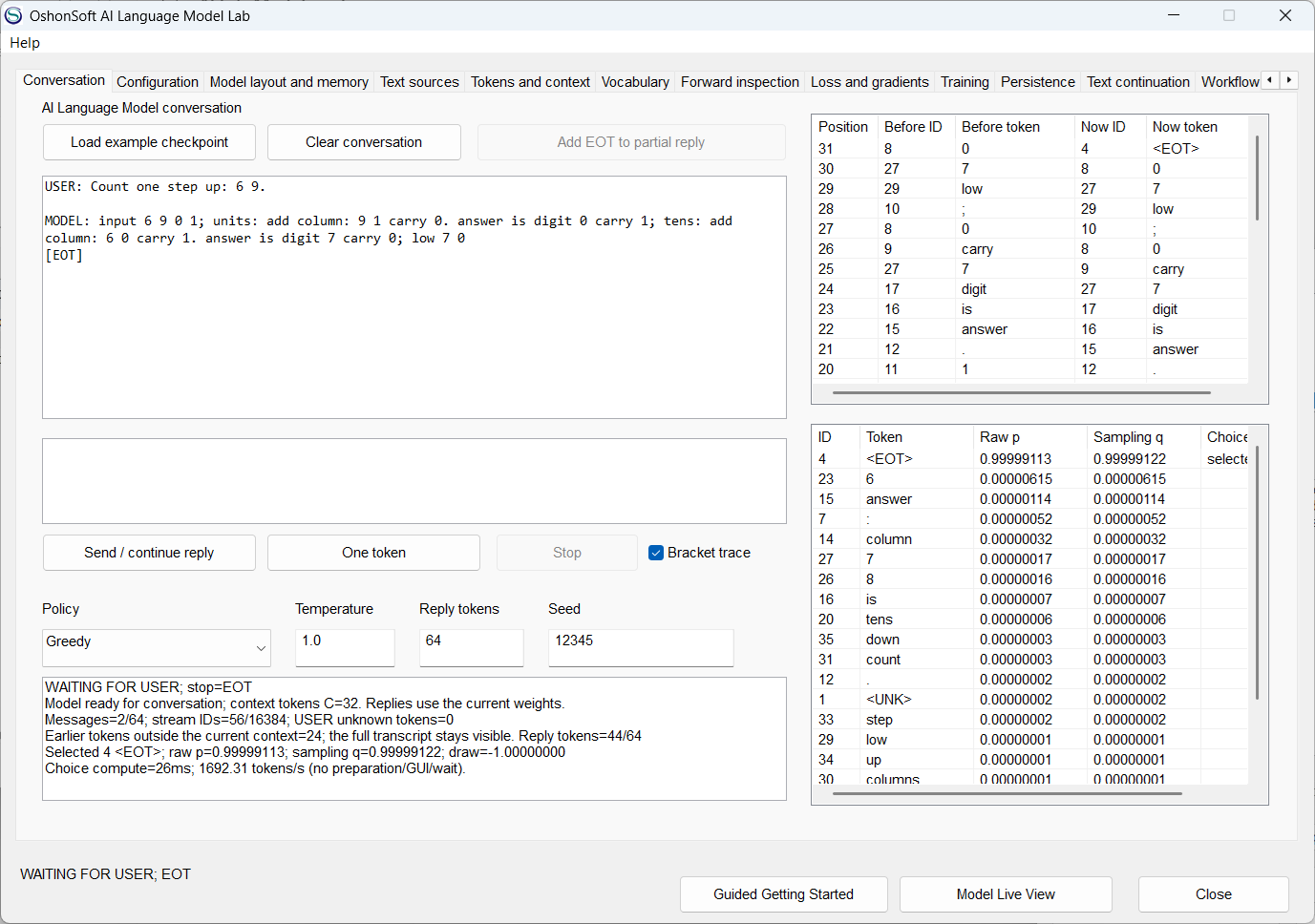
Learn one upward or downward step through a two-column arithmetic trace. Final evaluation: 40/40 ordinary inputs.
Count intervals from 1 to 50
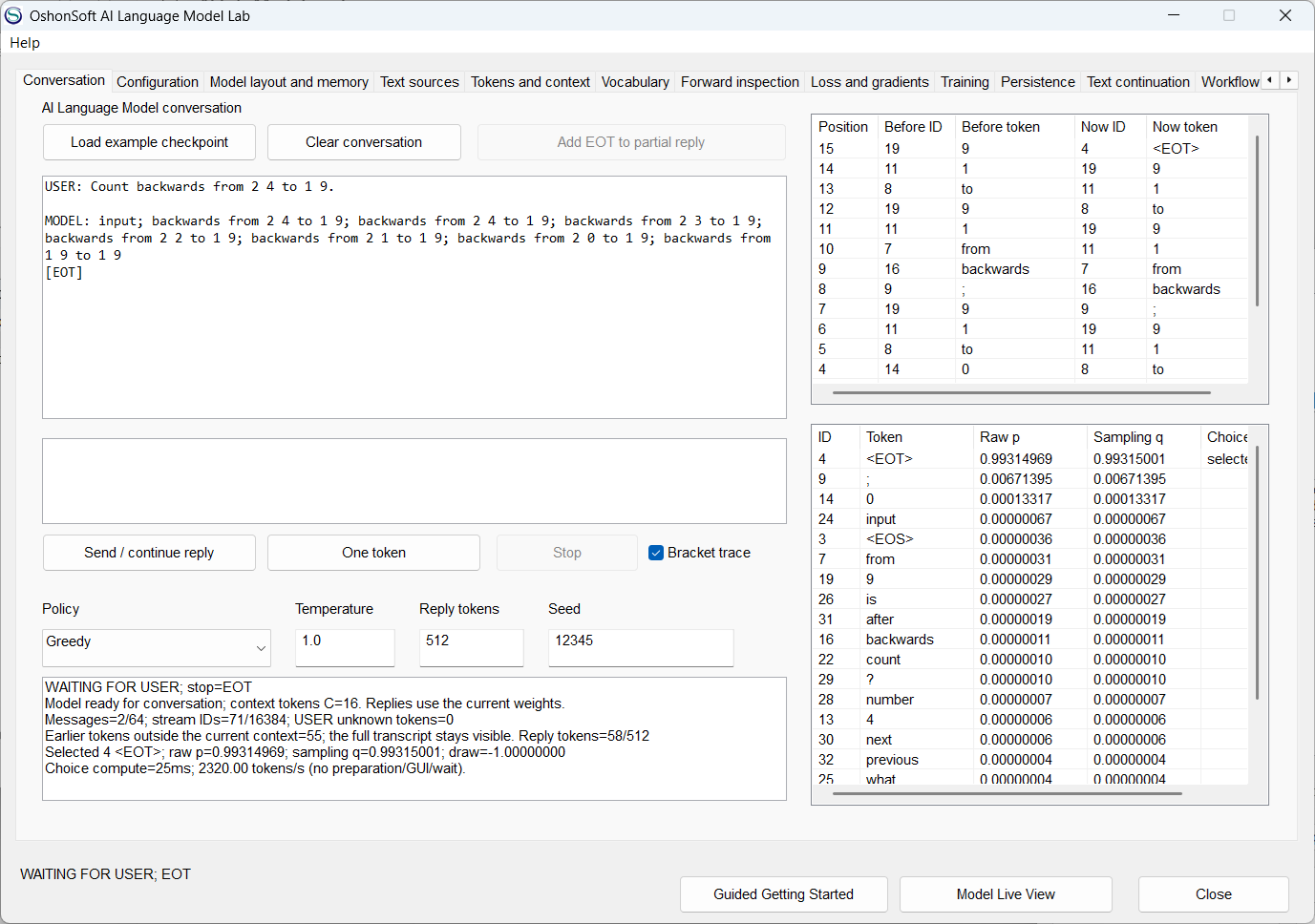
Repeat the current value and fixed endpoint, move one value at a time and stop at the requested bound. Final evaluation: 102/106 ordinary inputs, 39/40 held-out combinations, 32/32 long intervals within 1-50.
Add values from 0 to 99
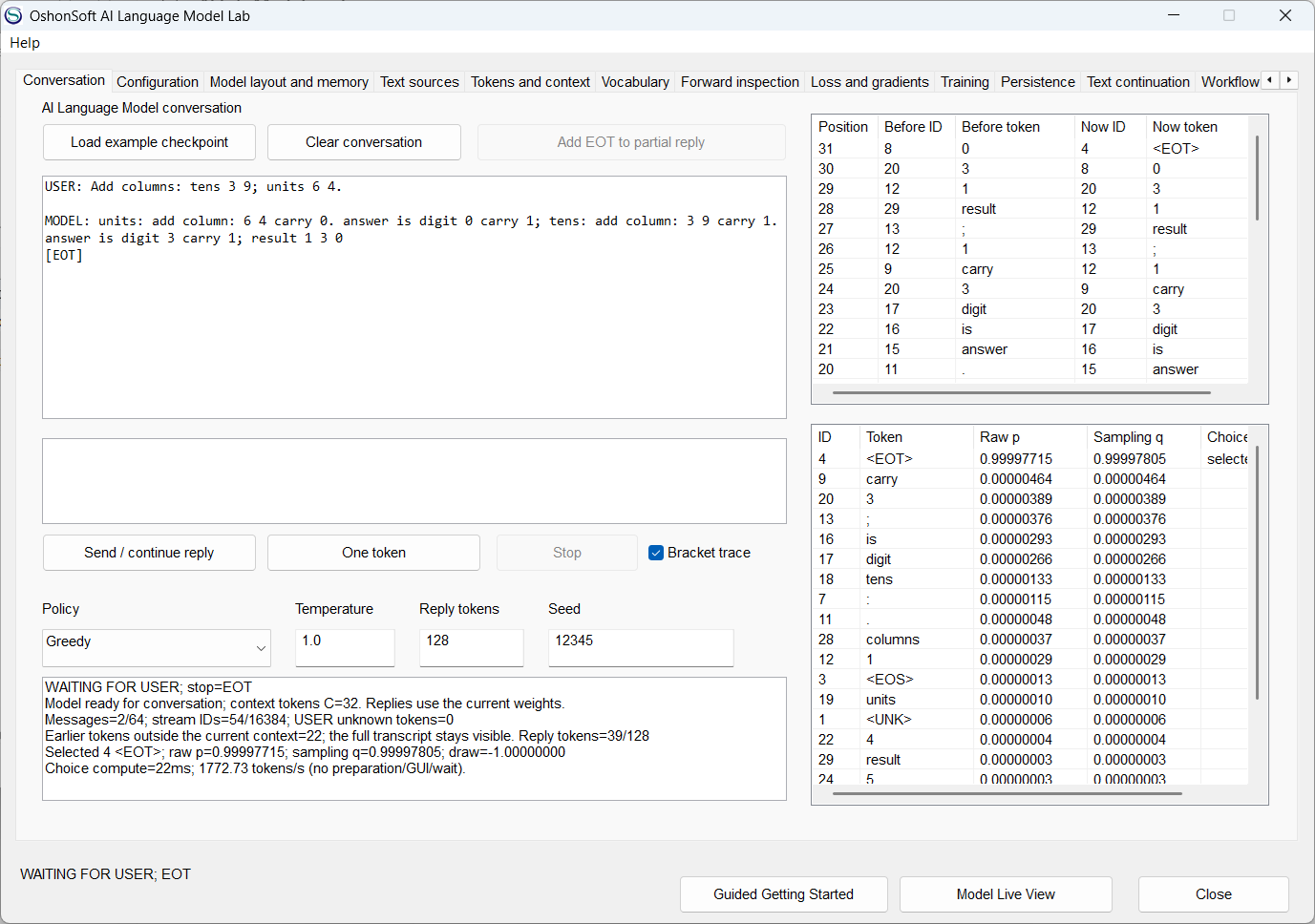
Repeat two-column addition with the larger training set and its separate operand groups. Final evaluation: 143/143 ordinary inputs, 40/40 held-out combinations, 0/47 three-digit operand inputs.
Every score requires the complete reply and correct stopping. The counting examples retain their mistakes in the saved answers. The 1-50 training material includes complete forward and backward sequences; its separate measurements test new requested intervals and their stopping bounds. Its long intervals contain 33-49 values, within the trained maximum of 50.
Choose an Arithmetic lesson in Guided Getting Started to repeat its full recipe. The installed Arithmetic Examples document gives the dimensions, initialization, learning rate, update target and selected checkpoint for each lesson. After training, select that checkpoint on Project and run Final evaluation. To try the supplied model, load models/selected.osai from the matching example through Persistence.
Research projects
Follow three completed studies with saved model replies, learning curves, measured results and the material needed to repeat the work.
Bracket Logic - learn to track nested brackets and locate the first error.
Three-Digit Addition - compare small MLPs and Transformers, carry traces and repeated runs.
Translation Patterns - compare direct translation with learned intermediate steps and optional adjectives.
Try the examples
Download the Windows x64 package, open Guided Getting Started and choose a lesson. The User Manual explains every page and control, including the differences between pausing training, freezing a view and saving a run.
PRODUCT HOMEPAGE - USER MANUAL